Time Off Manager Rules
Time Off Manager is used to keep track of planned time off, such as vacations, to ensure that hours are not over-promised to agents causing understaffing, or late cancellations of time off requests. Administrators can set up rules to automatically process requests for time off work.
What do you want to do?
Tasks in this Topic Include:
- Time Off Manager Rules
- Create Time Off Request Automatic Processing Rules
- Time Off Manager
- Set Exception Calendar Limits
Related Tasks:
- Set Up Monet
- Shift Profiles
- RTA Configuration
- Break Settings
- Set Global Options
- Status Alerts
- Scheduled Reports
- Anywhere Options
- Supervisors
- Reminders
- Shift Swapping Options
- Change Password
Time Off Manager Rules
|
Time Off Manager Rules Fields |
Description |
|---|---|
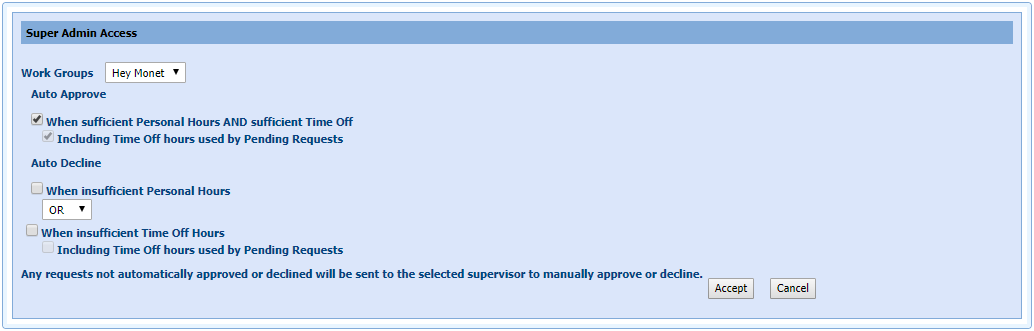
| Work Groups | The workgroup that will be affected by the Time Off Manager Rules. |
| Auto
Approve When sufficient Personal Hours AND sufficient Time Off Including Time Off hours used by Pending Requests |
Requests will be approved automatically when the employee has sufficient hours in their personal hours pool for the request, AND the day requested has sufficient time available based on the settings in the Exception Calendar. Only available if the When sufficient Personal Hours AND Sufficient Time Off boxes are checked. Includes the effect of pending requests on the employee's personal hours pool, and on the time available for the day. |
| Auto Decline When insufficient Personal Hours AND/OR When insufficient Time Off Hours Including Time Off hours used by Pending Requests |
Requests will be declined if the employee does not have sufficient hours in their personal hours pool for the request. The AND/OR option is only active when the When insufficient Time Off Hours check box is selected. The day requested does not have sufficient time available based on the settings in the Exception Calendar. Only available if the When insufficient Personal Hours box is checked. Includes the effect of pending requests on the time available for the day based on the settings in the Exception Calendar. |
| NOTE: Any requests not automatically approved or declined will be sent to the selected supervisor to manually approve or decline. | |
| Accept | Accepts the configured changes |
| Cancel | Cancels the changes |
Create Time Off Request Automatic Processing Rules
To create automated processing rules for Time Off requests:
- Select Setup > Time Off Manager Rules from the left-navigation menu.
- Select the Workgroup to apply the processing rules to from the drop-down menu.
- Select the Auto Approve check boxes for the conditions to approve a request automatically.
- Select the Auto
Decline check boxes for the conditions to disapprove a request
automatically.
- Select OR or AND from the drop-down menu to set the conditions for When insufficient Personal Hours and when insufficient Time Off Hours apply.
- If you selected When insufficient Personal Hours, chose whether or not to use Including time off hours used by Pending Requests by selecting or not selecting the check box.
- Select Accept to save the Time Off Manager rules.
Time Off Manager
Limits are set within WFO Live for time off allowed per date and skill team.
Set Exception Calendar Limits
To set the limits:
- Select Manage
> Exception Calendar from
the left-navigation menu.
- In the Filters section, select the elements
that apply to the exceptions.

- Select a date range in the calendar section.
NOTE: To
choose multiple, contiguous days within a month, select a single day;
and then hold SHIFT, and select
the last day in the span. You can also choose CTRL
to select individual, non-contiguous days.
- Select Time Off Manager.
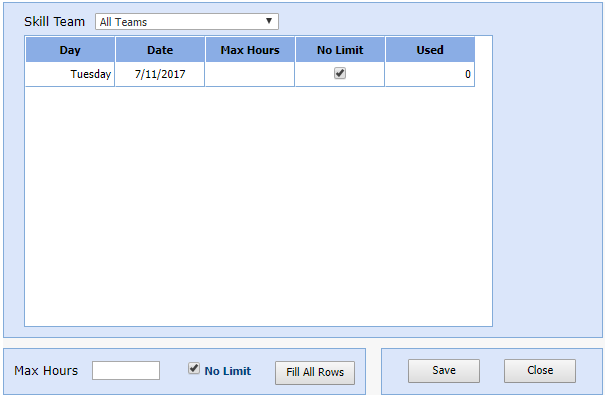
- There are two ways to apply limits:
- To set each day's limit individually, enter the Max Hours on each row, or check the No Limit checkbox.
- To set the same limit to all the days listed, at the bottom of the screen, enter a value in the Max Hours field, or check the No Limit box.
- Select Fill All Rows to apply the limits to all days of the week.
- Select Save, then Close.