Status Alerts
Status alerts differ from reminders that come from the Supervisor and Agent Portals in the sense that the Supervisor and Agent Portal reminders are before things happen. Status alerts remind agents that they are in a state that you have deemed not productive. You want to send them a reminder if they are in that state too long. Your agents will now be made aware that they are out of adherence in real time, which helps them do the right thing at the right time.
You can remind agents when they are sitting in available when they should have gone to break or lunch. You can alert them when they remain in login during the day. Use alerts to assist agents that are having trouble following their schedule.
What do you want to do?
Tasks in this Topic Include:
Related Tasks:
Add Alert
- Select Setup > Status Alerts.
- Select Add Alert.
- Click in the cell under Alert Name.
The box that opens displays as a Anywhere pop-up when the agent receives it. - Enter the alert message.

Command Buttons
|
Command Buttons |
Description |
|---|---|
| Add Alert | Adds an alert that will display on the Agent's Anywhere interface |
| Delete Alert | Deletes an alert |
| Save | The alert is set, and the pop-up or email is triggered. |
Overview Tab
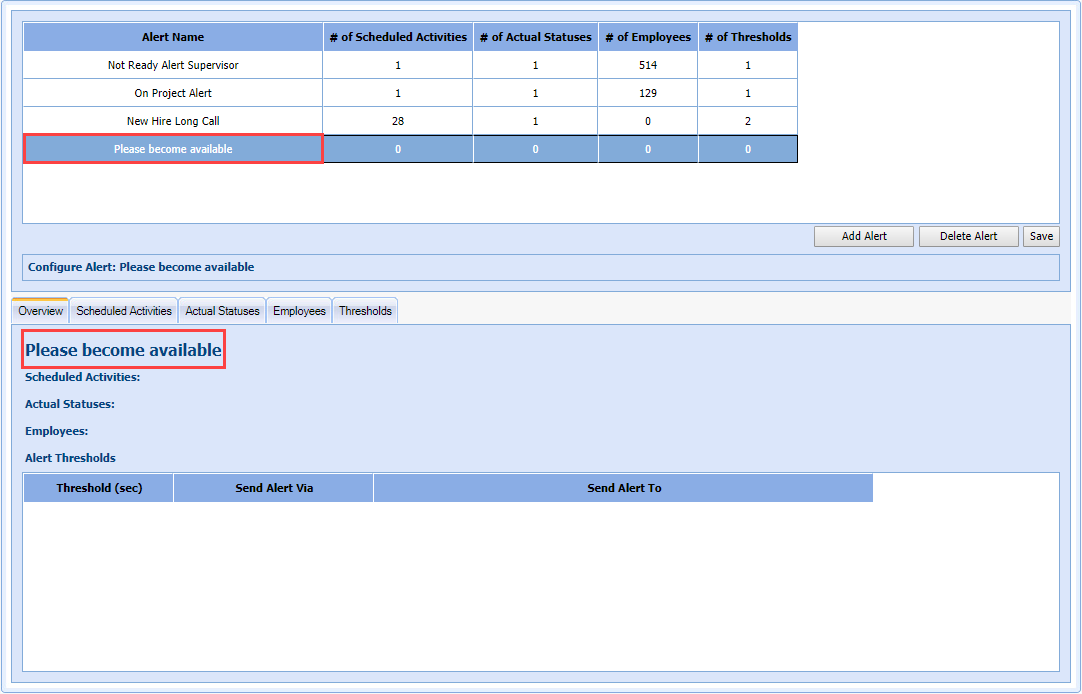
When an alert is selected in the Alert table, a summary displays showing the settings for the tabs: Scheduled Activities, Actual Statuses, Employees, and Alert Thresholds.
- In the Overview tab, the message displays along with a summary showing the current settings for the tabs: Scheduled Activities, Actual Statuses, Employees, and Alert Thresholds.
Scheduled Activities
The activities that show up on the agent schedule that you want to remind the agent they should be doing.
- Select the Scheduled Activities tab.
- Select the Available Activities that you wish to monitor.
- Click Include > to move the available activity to the Activities Included column.
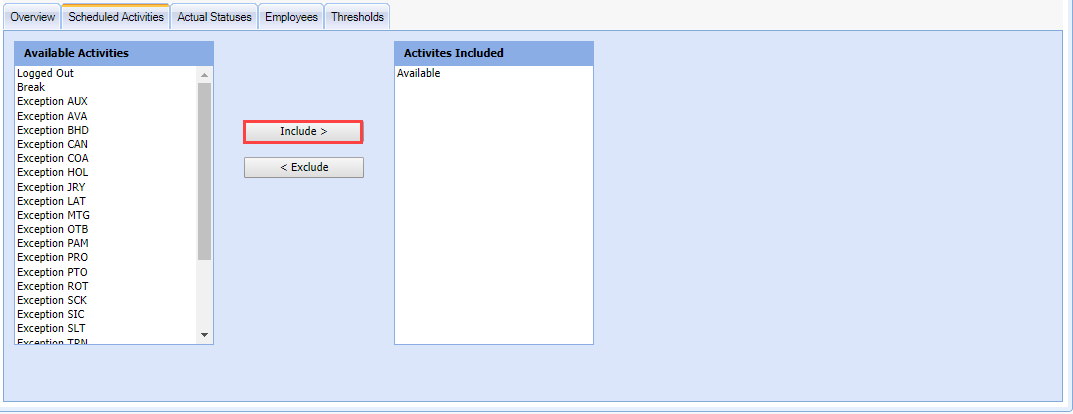
(Click Exclude > to move the activity back.)
Actual Statuses
These are the actual phone system statuses sent via the Real Time Adherence feed.
- Select the Actual Statuses tab.
- Select Status Alerts.
- Click Include > to move the available status to the Statuses Included column.
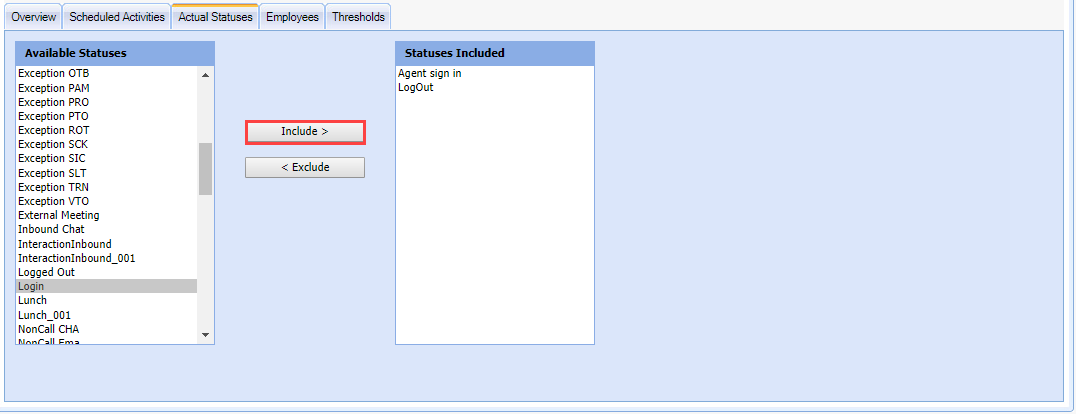
- Click < Exclude to move the status back.)
- Click Include > to move the available status to the Statuses Included column.
Employees Tab
The employees who should be getting the pop-up message and/or email. We can filter the employee lists by Workgroup, Skill Team, Employee Team, or by Individual site. The grayed-out entries shown in the Employees Included box are the names of the workgroups. These are headers to visually organize the selected employees. As employees are included, they will be grouped under their assigned Workgroup.
- Select the Employees tab.
- Select the employee(s) to include.
- Click Include > to move the employee to the Employees Included column.

- (Click Exclude > to move the employee back.)
- Click Include > to move the employee to the Employees Included column.
Thresholds Tab
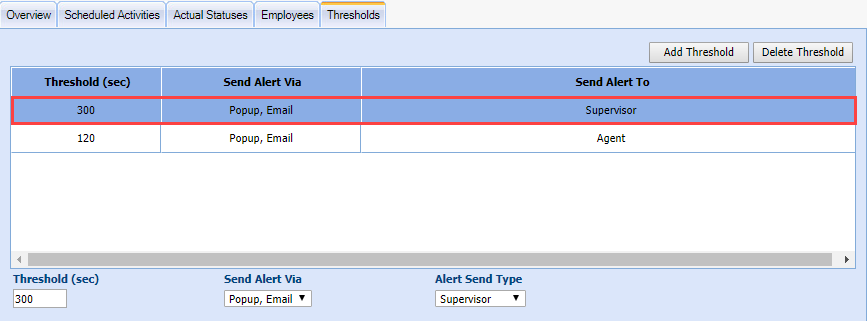
The number of seconds Monet will wait until sending the alert (the alert can be a Anywhere pop-up, email, or both). The recipient of the alert is shown in Send Alert To. You can select employees across your organization, one particular workgroup, or a single agent.
- Select the Thresholds tab.
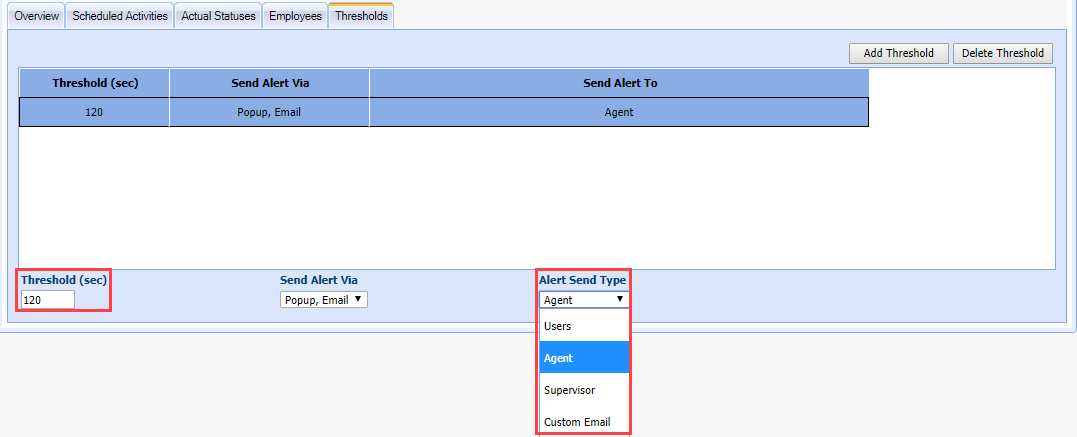
- Enter the number of seconds before the alert is triggered.
- Select the type of alert from the Send Alert Via drop-down (pop-up, email, or both).
- Select the recipient of the alert from the Alert Send Type drop-down.
- Click Save.