User Access Roles
This screen allows you to create and manage user roles. Roles are assigned to users in order to limit access. For instance, a user's role can be restricted by associating it to only a limited number of resource types, such as workgroups, sites, skill teams, and so on. For more information about roles, see Access Role Descriptions
NOTE: Data restrictions
only apply to the Metrics
module.
What do you want to do?
Tasks in this Topic Include:
Related Tasks:
- Goals and Alerts
- Scorecard Setup
- Attendance Setup
- AUX Setup
- Custom Metrics Setup
- Custom Metrics Import
- Initial Attendance Score
- Initial AUX Score
Access Role Descriptions
The following descriptions are provided for additional information.
| Role | Access to Metrics? | Description |
|---|---|---|
| Agent | No | Receives alerts based on defined goals |
| Supervisor | Yes | Access to the data of agent whom are assigned to the individual through Anywhere |
| Company | Yes | Access to the tenant's entire data |
Create Metric User Roles
- Select Metrics from
the left-navigation menu.
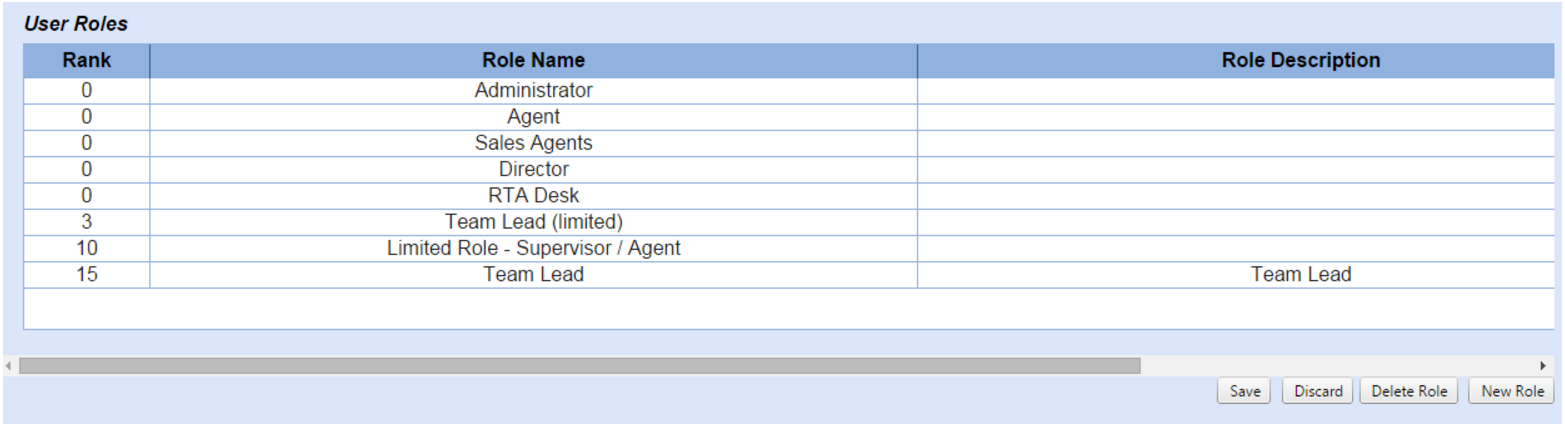
- Select Configuration.
- Select User Access.
- Select New Role.
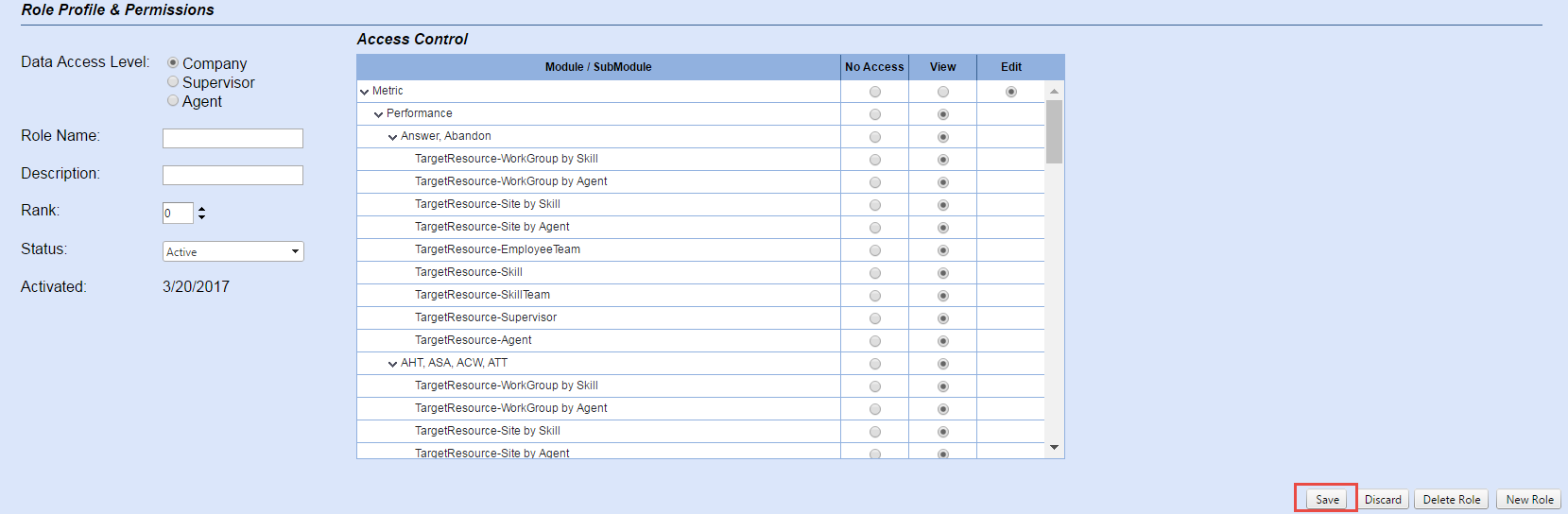
- Select the Data Access Level radio button for the new role.
- For Company and Supervisor roles, select the appropriate permissions for each listed function from the Access Control table.
NOTE: This area
is only displays for Company and Supervisor roles.
- Enter a Role Name.
- Enter a Description of the role.
- Enter or select the role Rank.
- Select the role Status from the drop-down menu.
- Select Save.
Modify Existing Roles
- Select the role to modify from the User Roles table.
- Update the user role record accordingly.
- Select Save.
Delete a Role
- Select the role to delete from the User Roles table.
- Select Delete Role.
NOTE: The Administrator role cannot be modified,
deleted, or set to inactive.