Custom Metrics Import
You can import metrics data into a custom metric you created.
What do you want to do?
Tasks in this Topic Include:
Related Tasks:
- User Access Roles
- Goals and Alerts
- Metrics Scorecard Setup
- Attendance Setup
- AUX Setup
- Custom Metrics Setup
- Initial Attendance Score
- Initial AUX Score Import
Import Custom Metrics Data
Custom metrics can be imported into Monet Metrics for use in a scorecard.
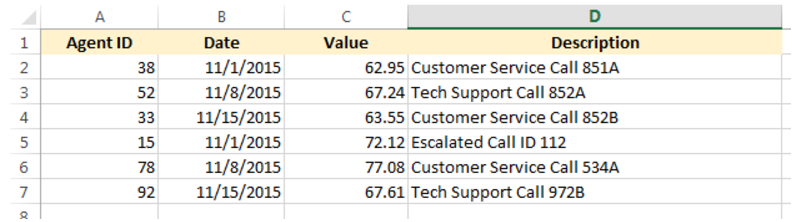
- Create a spreadsheet in .csv, .xls, .xlsx format with the following information:
- Agent ID - Agent ID as listed in the Employee List
- Date - Date of the activity or score
- Value - Numeric value of the score
- Description - Description of the score (does not appear in the scorecard)
- Select Metrics in the left-navigation menu.
- Select Custom Metrics Import under the Configuration menu item.
- Select the Custom Metric to import the data into from the drop-down menu.
- Press Select and navigate to the location of the spreadsheet.
- Select the Update existing duplicated records check box as desired.
- Select the Ignore missing agents check box as desired.
- Select Import to import the data.
Delete Custom Metric Data
Custom metric data can be deleted for a date range:
- Select the Custom Metric from the drop-down menu.
- Select a Start Date from the calendar picker or enter the date directly into the text box.
- Select an End Date from the calendar picker or enter the date directly into the text box.
- Select Delete.
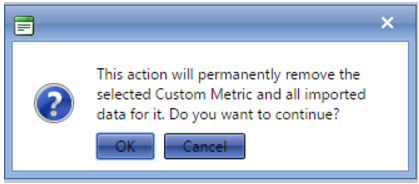
- A confirmation message displays:
- Click OK.