Attendance Setup
Supervisors have the ability to keep track of attendance policy violations by adding points to the agent's policy score, which will be given by using exception codes, or for being logged out for a specified amount of time when scheduled to be logged in. Each exception is assigned a score which will be given to the agent for each instance that exception code is used. Any exception code that can affect an agent's attendance score must be assigned a score in this window. Agents seek to have a score of 0, and can reduce scores received by performing exceptions that are assigned negative scores. For example, arriving late is assigned a plus value, and working late is assigned a negative value.
What do you want to do?
Tasks in this Topic Include:
- Attendance Policy Scores
- Exceptions
- Threshold of Logged Out Time
- Expiration of Point When No New Positive Score
Related Tasks:
- User Access Roles
- Goals and Alerts
- Metrics Scorecard Setup
- AUX Scorecard Setup
- Custom Metrics Setup
- Custom Metrics Import
- Initial Attendance Score
- Initial AUX Score Import
Attendance Policy Scores
To set up attendance scores:
Exceptions
- Select Metrics in the left navigation menu.
- Select Attendance
Setup under the Configuration
menu item.
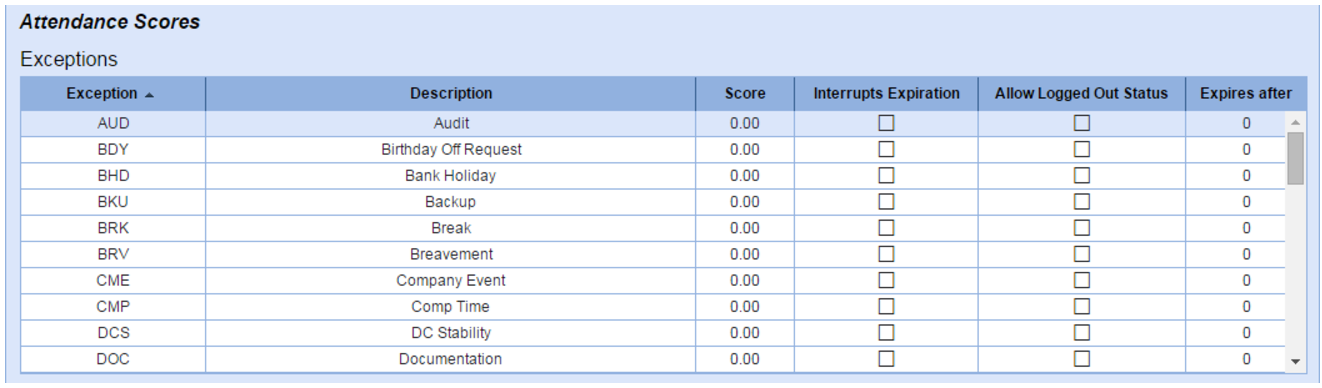
- Highlight an exception to set details.
- Select the Interrupts Expiration check box as desired to set whether or not this exception affects the Expiration of points when no new positive score section below.
- Select the Allow Logged Out Status check box as desired to allow ACD logged out status states to be included in the scores.
- Double-click and enter a value in the Expires After column to designate the days until the exception no longer is included in their scorecard points.
Threshold of Logged Out Time
In addition to the attendance scores being assessed by exception you can automatically assess points in the Threshold of logged out time section. This section is meant to automatically capture when agents are Late or Leave Early.
- Select Add
Threshold.

- Enter the threshold of Minutes of logged out time that when reached adds the specified points to the scorecard for the agent.
- Enter the Score that is added to the scorecard of the agent.
- Select Apply.
Expiration of Points When No Positive Score
This section allows the points to be bought back with perfect attendance across a pre-defined time frame.
- Select Add
Expiration.
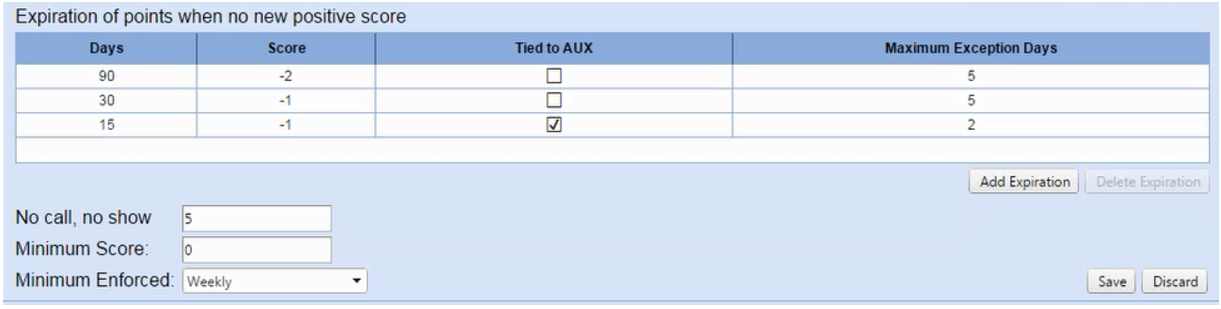
- Enter the Days until the expiration of points.
- Enter the Score that is applied to the scorecard.
- Select the Tied to AUX check box as desired to include the AUX points in the expiration of points process.
- Enter the Maximum Exception Days to set the number of exceptions that can occur within the Days period and still be awarded the Score.
- Enter the number of points assessed for a No call, no show status of an agent.
- Enter the Minimum Score an agent can have on a scorecard.
- Select the Minimum Enforced period from the drop-down menu.
- Select Apply.