Custom Metrics Set Up
Custom metrics can be used in your scorecard. Monet Supports entering multiple Aggregation Types so you can track averages or sums in your scorecard and also supports multiple value types allowing percentages, times, numerical figures, or costs. Custom metrics can also be imported via a .csv, .xls, or .xlxs file (see Custom Metrics Import).
What do you want to do?
Tasks in this Topic Include:
Related Tasks:
- User Access Roles
- Goals and Alerts
- Metrics Scorecard Setup
- Attendance Setup
- AUX Scorecard Setup
- Custom Metrics Import
- Initial Attendance Score
- Initial AUX Score Import
Create a New Custom Metric
To create a new custom metric:
- Select Metrics in the left-navigation menu.
- Select Custom Metrics Setup under the Configuration menu item.
- Select New
Metric.
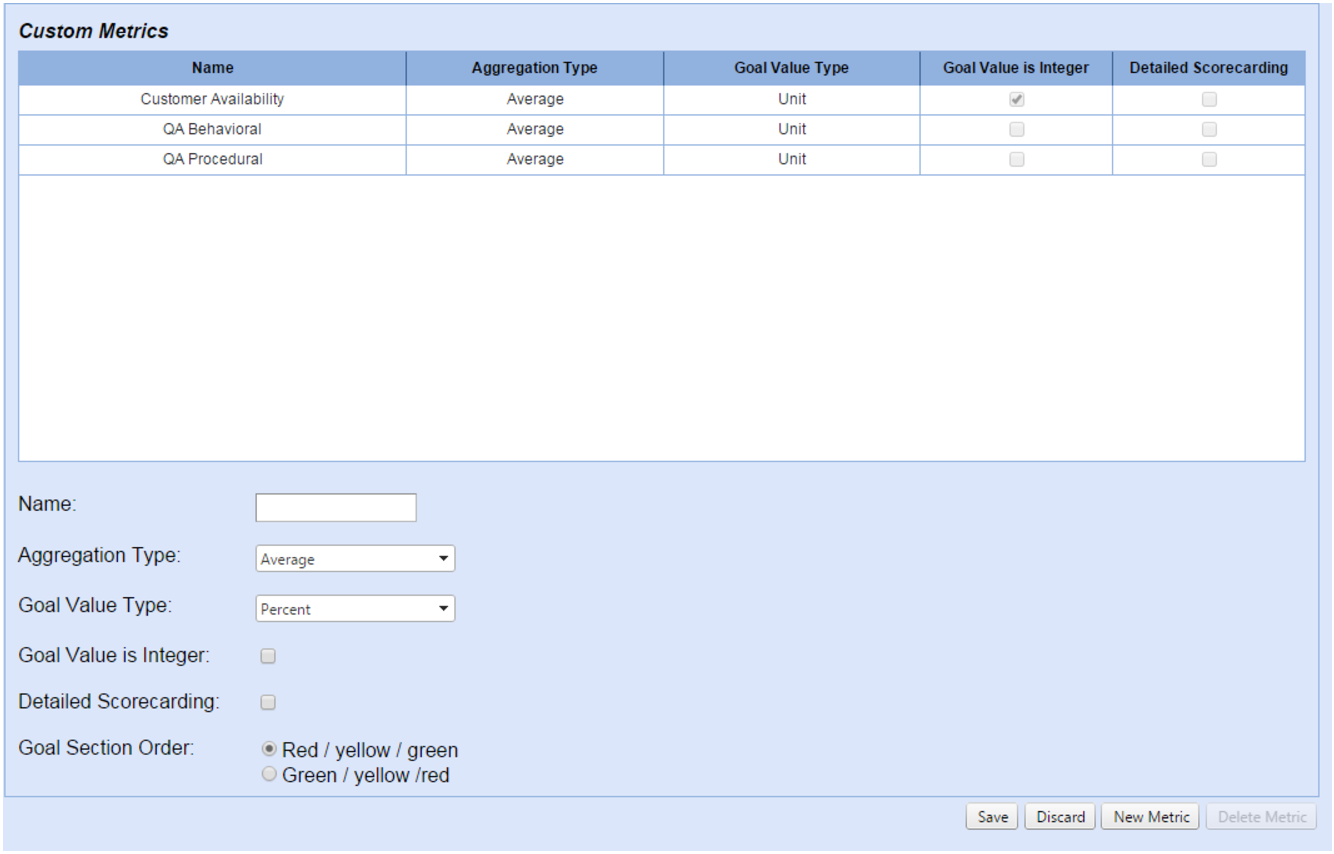
- Enter a Name for the new metric.
- Select the Aggregation Type from the drop-down menu.
- Select the Goal Value Type from the drop-down menu.
- Select the Goal Value is Integer check box if the goal value is numerical.
- Select the Detailed Scorecarding check box as desired.
- Select the radio button of the desired Goal Section Order.
- Select Save.
Edit a Custom Metric
To edit a custom Metric:
- Select the metric to edit from the table.
- Enter new values as desired.
- Select Save.
Delete a Custom Metric
To delete a custom metric:
- Select the metric to delete from the table.
- Select Delete Metric.
- A confirmation window is displayed:
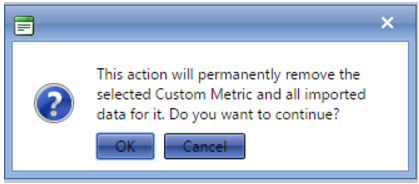
- Select OK to delete the custom metric.