Today's Schedule Exceptions
The Today's Exceptions feature helps you keep track of employees who are unable to come in to work on a given day. You enter the exception by the employee name for time periods of less than a full shift. For instance, an employee could be three hours late or volunteer for 30 minutes of overtime.
The WFO Live program checks the list of employees assigned on this day. So, if a break or a lunch falls between the start and the end times of the exception, those 15-minute increments will be automatically considered and the Employees Assigned column is adjusted accordingly.
What do you want to do?
Tasks included in this topic:
Related Tasks:
Create an Exception
- Select View Roster from the Staff left-navigation menu.
- Select the Exceptions tab.
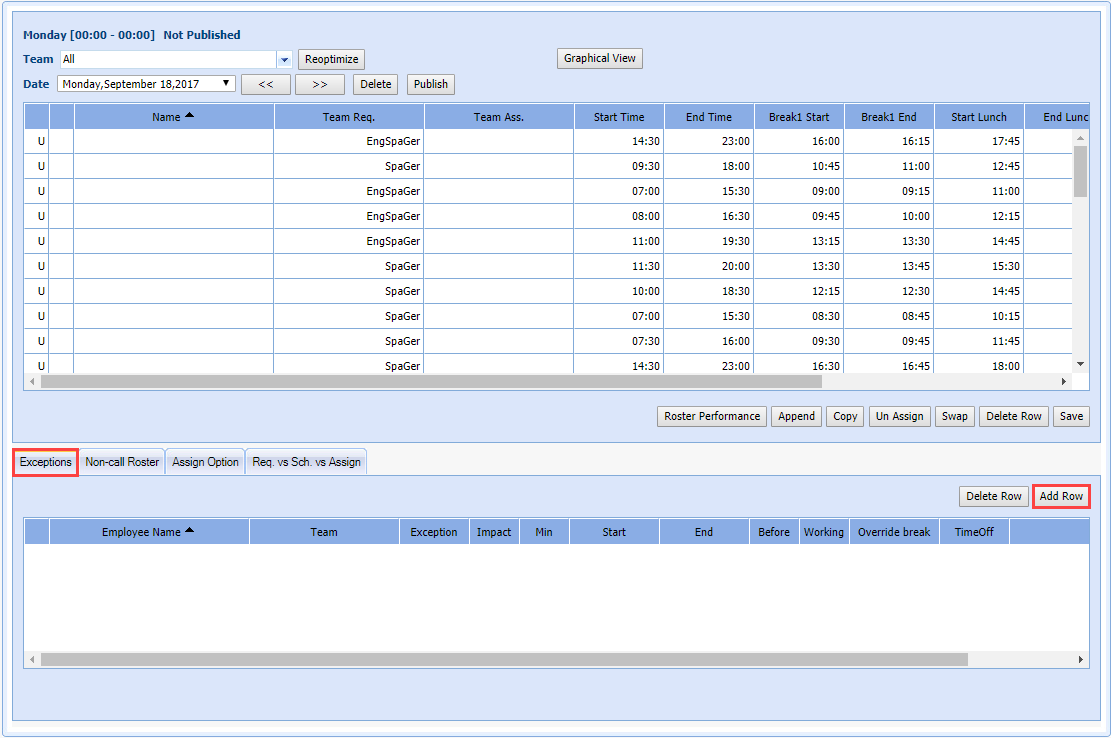
- Select Add Row.
- Select the name of the employee from the drop-down menu, highlight the employee.
NOTE: The Team name and shift start
and end times of the employee are automatically populated.
- Enter an Exceptioncode from the drop-down menu.
- Select the Impact value (+,
-, or an N), from the drop-down menu.
- A + (plus) will add phone time before or after an agent's shift.
- A - (minus) will subtract one person for each quarter hour, and an N (neutral change) will make no change to the Current Assigned column.
NOTE: The N code allows you to keep track of events, which do not affect an employee's availability, such as special projects. See Mid-Day Exceptions for additional details.
- Adjust the Start and End Times as required (for a minus exception only).
- Select the place to enter the exception (B = before the scheduled shift, or A = After the scheduled shift) from the drop-down menu (for a plus exception only).
- Select whether the employee will be working in the exception period or not (Y/N) from the Working drop-down menu.
- Set the value for the Override Break (Move, Override, Move Always) from the drop-down menu.
NOTE:
If the employee is scheduled for a break during the Exception time period,
the break will either moved or overridden.
- Enter a Reason for the exception.
Delete an Exception
To delete an exception:
- Select View Roster from the Staff left-navigation menu.
- Select the Exceptions tab.
- Place the cursor in any of the columns of the row.
- Select Delete Row.