Applying Availability / Preference
During the staffing routine, the program will use the minimum and the maximum hours per day and the target for the week/month to staff employees. The weekly, daily, and monthly maximum number of hours will not be exceeded unless manually overwritten. However, there may be instances when employees will be scheduled under the minimum number of hours. Usually that will be the result of not finding a shift within the span of acceptable working times for the employee considering min/max hours per day, week, month, maximum days in a row, or due to exceptions.
What do you want to do?
Tasks in this Topic Include:
Related Tasks:
- Maintain Employee List
- Fixed Shift Selection
- Changing Rank Status
- Maintaining Notes
- Setting Non-Call Availabilities
- Maintaining Employee Details
- Maintain Inactive Employees
- Employee Import / Export
- Employee Templates
- Generating Employee Reports
Availability/Preferences
The Availability/Preferences tab is where employee availability and preferences for shifts are set.
Availability Preference Fields
These are the available fields used to configure Availability Preferences.
|
Availability Preference Fields |
Description |
|---|---|
|
Min. # of Hours |
Enter the minimum number of hours that an employee can work for each day when the workgroup is open. When rosters are assigned, Monet will assign an employee only shifts consisting of hours between the minimum and maximum hours for that day. Lunchtime is excluded in the count of hours, but break time is included. For example, a 9 a.m. to 5:30 p.m. shift with a 30-minute lunch would be considered to be eight hours long. |
|
Max. # of Hours |
Enter the maximum number of hours that an employee can work for each day when the workgroup is open. When rosters are assigned, Monet will assign an employee only shifts consisting of hours between the minimum and maximum hours for that day. Lunchtime is excluded in the count of hours, but break time is included. Example: a 9 a.m. to 5:30 p.m. shift with a 30-minute lunch would be considered to be eight hours long. |
|
Earliest Start |
Enter the earliest start time an employee is available for work each day. If the entry for the first open day is the same as that of the following day, press the TAB key to move to that day which will be populated with the same earliest start time. If you wish to change the earliest start time for the next day, use either the TAB key or the DOWN ARROW key to move o the next field. |
|
Latest Start |
Enter the latest start time an employee is available for work each day. The entry must be later than the entry in the earliest start time for each day. If the entry for the first open day is the same as that of the following day, press the TAB key to move to that day, which will be populated with the same latest start time. If you wish to change the latest start time for the next day, use either the TAB key or the DOWN ARROW key to move to the next field. |
|
Latest End |
Enter the latest end time an employee is available for work each day. The entry must be later than the earliest start time and the latest start time for each day. |
|
Assign On |
Select the check box to guarantee that the agent is assigned to work. |
|
Weekly Min. Target |
Enter the minimum number of target hours per week for this employee. The minimum is least amount of hours the agent can work. Example 5 days x 4 hrs = 20 hours for the week. |
|
Weekly Max Target |
Enter the maximum number of target hours per week for this employee. The minimum and maximum can be the same or can be expressed by a range of hours (e.g., 30, 40). Maximum hours must be equal to or greater than the minimum hours. |
|
Monthly Min Target |
Enter the minimum number of target hours per month for this employee. The minimum is least amount of hours the agent can work, 20 hours a week x 4 weeks = 80 hours for the month. |
|
Monthly Max. Target |
Enter the maximum number of target hours per month for this employee. The minimum and maximum can be the same or can be expressed by a range of hours (e.g., 160, 200). Example 40 hours x 4 weeks = 160 hours. |
Set Availability Details
- Select Employees from the left-navigation menu.
- Select Employee List.
- Highlight an employee (agent) in the table by selecting the first column (blank).
- Select the Edit button located at the bottom of the table.
- Select the Availability/Preferences
tab if it not already selected.
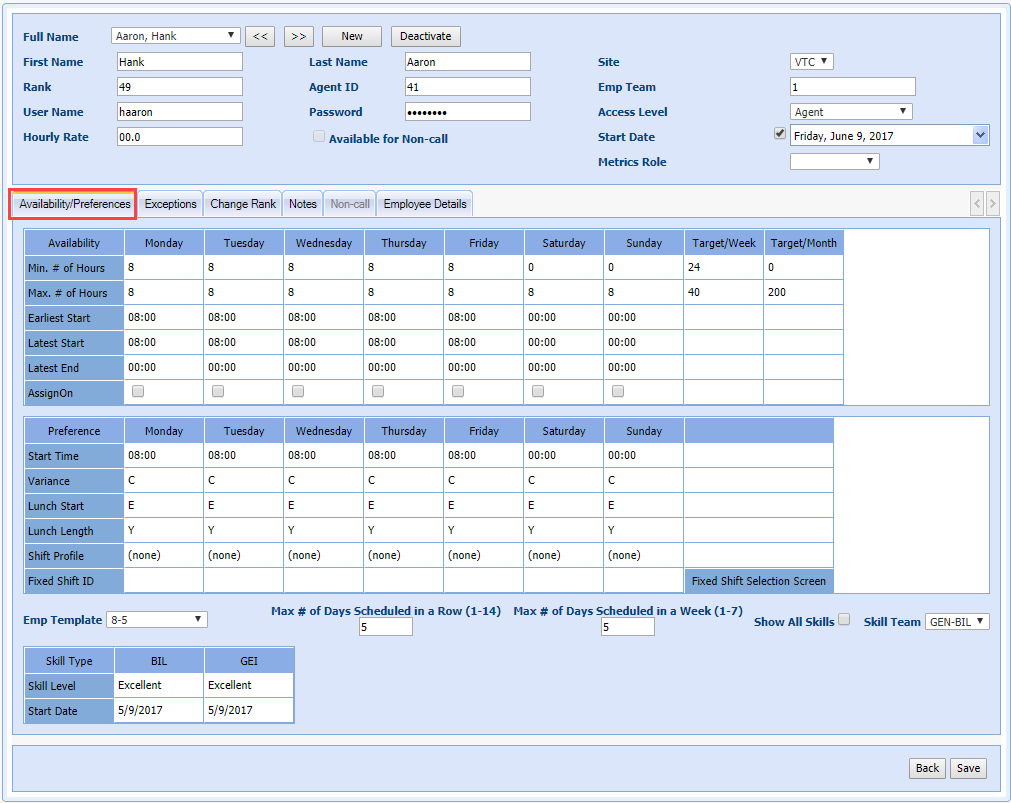
- Enter the employee's availability in the Availability section accordingly.
Set Preference Details
Preference details include information about an employees scheduling preferences
-
Enter the employee's preferences in the Preference section accordingly.
-
Select Save.
| Set Preference Details Fields | Description |
|---|---|
| Start Time | Enter the preferred start time for each day of the week. The preferred start time must be between the earliest and latest start time availability for this day entered above. |
| Variance |
Enter the letter for the type of preferred start time variance for this employee. The variance is used with the start time to give the program a direction in which to search for a shift to assign, as follows. These fields show the variances/ deviations from the employees availability section. C (Closest), F (Fixed), E (Earlier) and L (Later) are used to denote various variances. Variance C (Closest): The program will search all start times within the earliest and latest start range for the start time closest to the start time preference. It will search first for the exact start time, then for fifteen minutes later, and then again for 15 minutes earlier, etc. until a shift is staffed or until the entire availability range is searched. For example, if the earliest start is 08:30 and the latest start is 09:30, the start time preference is 9:00 and the variance is C, the program would search for a shift that starts at 9:00, then 9:15, then 8:45, then 9:30, and then 8:30. It will staff the first one found, and if none was available, then the employee will not be staffed a shift. Variance F (Fixed): The program will search for a shift that starts only with the time entered as the start time preference. If no shift is found, the employee will not be staffed a shift. Variance E (Earlier): WFO Live will search for the latest start time within the earliest and the latest start time range for a shift with a start time on or earlier than the start time preference. Then it will search for the earliest start time later than the start time preferred but still within the start time availability range. For example, if the earliest start time is 08:00 and the latest start time is 10:00, and the start time is 9:30 with a variance of E, the program will search for a shift that starts at 9:30, then 9:15, then 9:00 (and all the way to 08:00 in fifteen minute intervals). Then it will search for a 9:45 and finally a 10:00. It will staff the first shift found (which also falls within the minimum and maximum hours for the day and the target for the week), and if none are available, the employee will not be staffed a shift. Variance L (Later): WFO Live will search for the earliest start time within the earliest and the latest start time range for a shift with a start time on or later than the start time preference. Then it will search for the latest start time earlier than the start time preferred but still within the start time availability range. For example, if the earliest start time is 08:00 and the latest start time is 10:00, and the start time is 8:30 with a variance of L, the program will search for a shift that starts at 8:30, then 8:45, then 9:00 (and all the way to 10:00 in fifteen minute intervals). Then it will search for an 8:00 and finally an 8:45. It will staff the first shift that falls within the minimum and maximum hours for the day and target for the week, and if none are available, the employee will not be staffed a shift. Lunch Start and Lunch Length can also be defined based on the preferences of an employee by using the drop-down menu. |
| Shift Profile/Fixed Shift ID | These two fields show the shift profile name and shift ID of any fixed shifts where this employee has been assigned. |
| Lunch Start (E/L) | Enter either E for earliest or L for latest for the employees preference of lunch start time. Once the shift is staffed by the start time using one of the four methods described above (Closest, fixed, Earliest, Latest), and if there is more than one shift available with this start time, the employee will be staffed the one with the earliest lunch if this field contains an E or the latest lunch if this field contains an L. |
| Lunch Length (S/L) | Enter either S for the shortest or L for the longest for the employees preference of lunch length. Once the shift is staffed by the start time using one of the four methods described above (Closest, Fixed, Earliest, Latest), and if there is more than one shift available with this start time, the employee will be staffed the one with the shortest lunch if this field contains an S or the one with the longest lunch if this field contain an L. |
| Max Days in a Row | This option is used to specify the maximum number of days an employee can work in a row. For instance, if you enter 3 in the max Days in a Row field for a particular employee, that employee will be assigned for 3 simultaneous days in a row. |
Specific Profiles
For any day of the week, agents can be assigned a specific, independent profile as the profile that their shift must be selected from. In order to have an agent only use a specific profile for a day, the user only needs to use the drop down in the Shift Profile row to select the appropriate profile for the corresponding day. Doing so will restrict the shifts that the agent can be assigned, to the shifts in that profile for the day. In days with a selection of (none), the agent will be assigned to shifts from the default profile that is selected immediately before generating a roster.
The most immediate and obvious place that this can assist would be in the cases of agents who are available to work shifts of the same lengths but are restricted working some of those shifts with specific attributes. Assume you have 2 agents who both must start between 8:00 – 11:00, but one of them must have 10 minutes breaks and the other must have 15 minute breaks. Previously, the only way to deal with this would be to run the schedules with the agents assigned to fixed shifts before running the roster. Now, you’ll just need to create 2 different profiles; one with shifts starting between 8:00 – 11:00 that has 10 minutes breaks and another with shifts starting between 8:00 – 11:00 that has 15 minute breaks. As long as the agent has the correct shift profiles applied them to them for the day that they need to be assigned a shift from a limited selection of shifts, the only shifts that they can possibly get will be from that profile.
Skill Sets
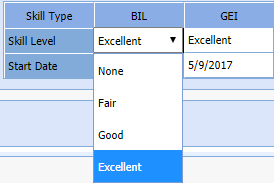
To define the skill set of an employee, you need to specify the skill level of each skill supported by the workgroup. You also have the option to select a predefined skill team. The skill levels for each skill can be any one of the following:
- Excellent
- Good
- Fair
- None (choose None if the employee does not possess the particular skill)
Set Skill Levels
-
Enter the employees skill levels by selecting the cell and then selecting an option from the drop-down menu.
-
Enter a Start Date that the skill is effective.
-
Select Save.
Set a Predefined Skill Team
-
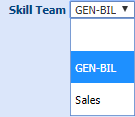
Assign the employee to a skill team from the Skill Team drop-down menu.