Creating Skill Teams
A selected skill or skills are assigned to a specific skill team. The skill team is then associated with various agents.
What do you want to do?
Tasks in this Topic Include:
Related Tasks:
- Create Skills
- Create Sites
- Setting Up Hours of Operation
- Applying Service Levels
- Applying Shrinkage Parameters
- Applying Non-Call Parameters
- Setting Up Exception Codes
- Import Work History
Create Skill Teams
Access Skill Teams tab
- Select Setup from the left-navigation menu.
- Select Workgroups.
- Select the workgroup you want to work with from the Workgroup drop-down menu.
- Select Skill Teams.
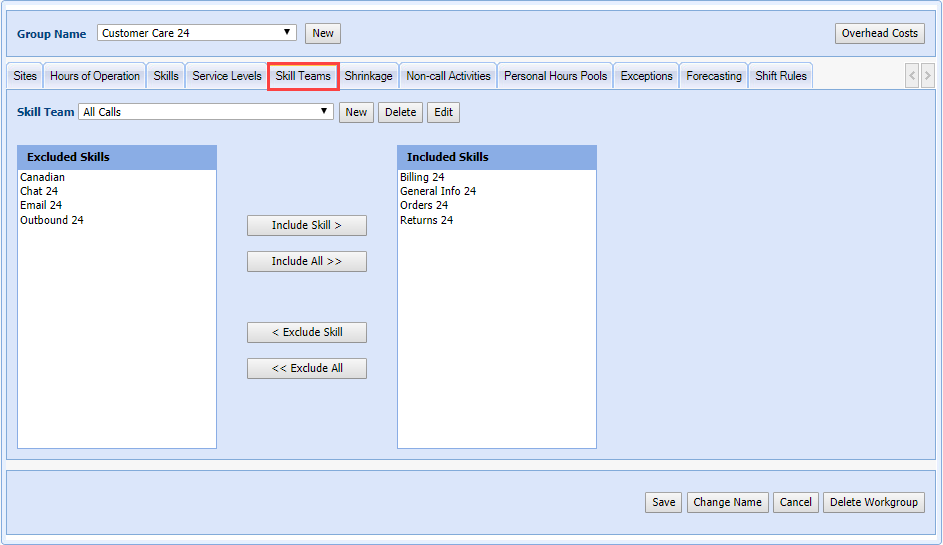
Create a Skill Team
- Select New.
- Enter a new skill team name in the Skill Team field.
- Select the skill(s) associated with this skill team in the Excluded Skills option list.
Press and hold down the CTRL key, and then select each option that you want to select.
- Select Include Skill >.
- Select Save.
Edit a Skill Team
- Select the skill team to edit in the Skill Team drop-down menu.
- Select Edit.
- Select the skill(s) that need to be added or removed in the Excluded Skills option list.
Press and hold down the CTRL key, and then select each option that you want to select.
- Select the corresponding < Exclude Skill or Include Skill>.
- Select Save.
Delete a Skill Team
- Select the skill team to delete in the Skill Team drop-down menu.
- Do one of the following:
- Select Yes to confirm the deletion.
- Select No to cancel the operation.
- Select Save.