Create Skills
The Skills tab allows you to define a skill and associate it with a Work Group.
What do you want to do?
Tasks in this Topic Include:
- Skill Fields
- Access the Skills Window
- Create a New Skill
- Modify a Skill
- Delete a Skill
- Moving Skills to a Workgroup
Related Tasks:
- Creating Skill Teams
- Create Sites
- Setting Up Hours of Operation
- Applying Service Levels
- Applying Shrinkage Parameters
- Applying Non-Call Parameters
- Setting Up Exception Codes
- Import Work History
Skill Fields
These are the available fields used to configure Skills in a Work Group.
|
Skill Fields |
Description |
|---|---|
| Skill Name | Name of the skill. |
| Skill Code | Three-character skill code that represents a skill throughout Monet for the workgroup. |
| ACD Group ID | Unique Skill ID from the ACD device (varies by Manufacturer). |
| Site Name | Site name associated with the skill. As skills are created, it defaults to Start Up time zone when originally created. |
| Select Workgroup | Select an existing workgroup to associate with the skill. By default this field is completed with the name of the workgroup in which you are working. If you are creating lots of skills for several workgroups, we suggest you log into each workgroup and enter the skills by group. |
| Skill Type | Choose the appropriate type for the traffic carried by the skill. |
| Description | This is a free form field that appears in some reports. It can be a repeat of the skill name or a description of the tasks in the queue. |
| ATT | Average Task Time in seconds. This field will initially have a default value entered and is used when a data collector is not going to be used. If a data collector will be used then Monet will take the actual ATT time provided by the collector when running the Forecasts and not the value entered in this field. |
| ATW | Average Time to Wrap up in seconds. This field will initially have a default value entered and is used for Forecasting when a data collector is not going to be used. If a data collector will be used then Monet will take the actual ATW time provided by the collector when running the Forecasts and not the value entered in this field. |
| Priority | Priority for handling a call (a higher number shows a lower priority). Monet can simulate prioritized queues in your ACD. The smaller the number, the more important the queue. |
| Count overflow calls as | Tells Monet to add overflowed calls to the counts for abandoned calls, add them to the counts for handled calls, or to ignore them (the default). |
| Answer / Abandon time | Provides the Average Speed to Answer (ASA) or Average Time to Abandon (ATAB) to average into the existing ASA or ATAB for handled or abandoned calls, respectively. It is applied only if there is no time to overflow provided in the imported history. |
Access the Skills Window
- Select Setup from the left-navigation menu.
- Select Workgroups.
- Select the workgroup you want to associate the skill with from the Workgroup drop-down menu.
- Select the Skills
tab.
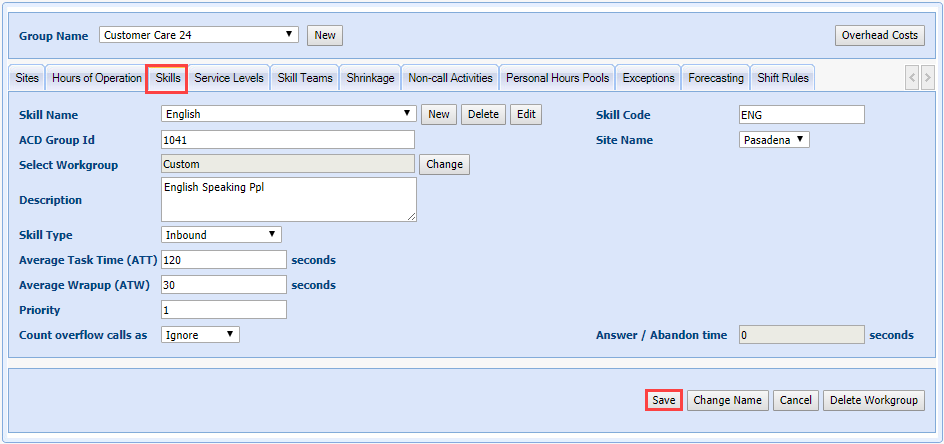
Create a New Skill
- Select the New button.
- Enter the name of the skill in the Skill Name field.
- Enter the unique skill ID from your ACD (varies by ACD Manufacturer) in the ACD Group ID field.
- Enter a brief description of the skill in the Description text box.
- Enter a three character code for the skill in the Skill Code field.
- Select the Site Name the skill is assigned to.
- Select the Skill Type from the drop-down menu.
- Enter the Skill Type values (see Set Skill Type Values).
- Select Save.
Modify a Skill
- Select the skill to modify in the Skill Name drop-down menu.
- Select Edit.
- Update the fields as needed.
- Select Save Skill Code.
Delete a Skill
- Select a skill name from the Skill Name drop-down menu.
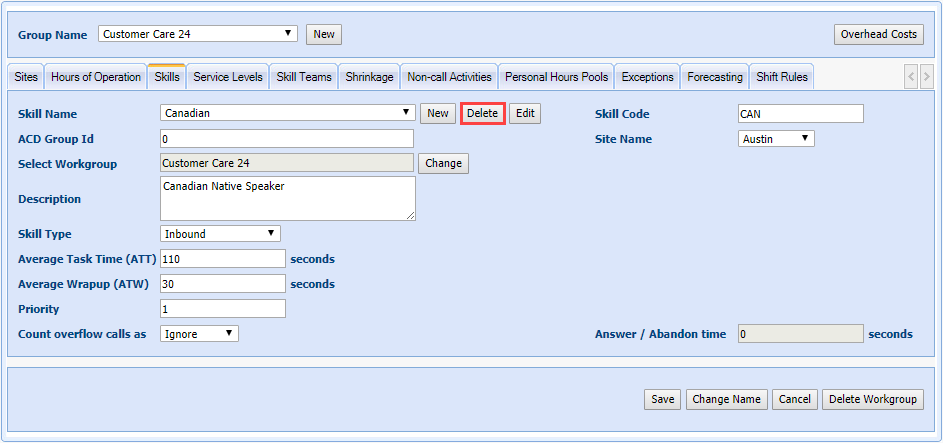
- Select Delete. A confirmation window is displayed.
- Select Yes. (The system will also delete skill related data such as work history, forecasts, schedules, and rosters).
- Select Save.
Moving Skills to a Workgroup
To move skills to a new workgroup:
- Determine which skills or skill teams need to be modified or removed.
- Select Setup > Workgroups > Skills tab in the left-navigation menu.
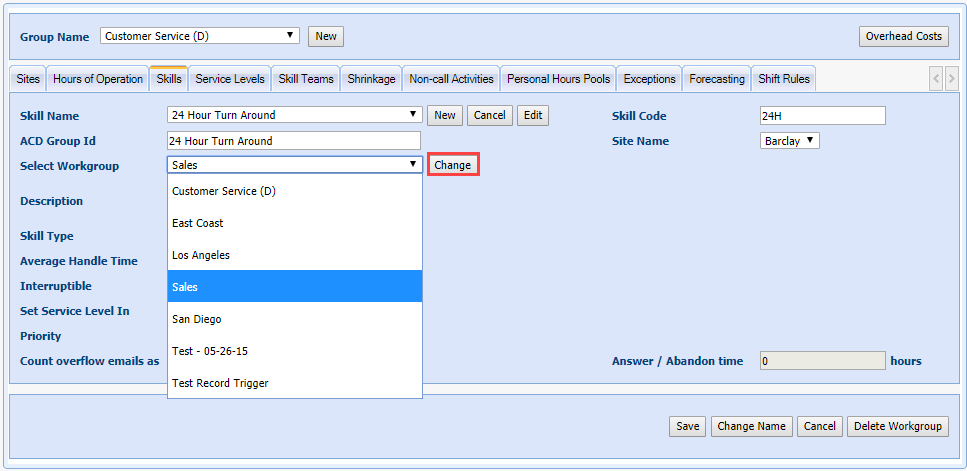
- Choose the Workgroup the skill is to be moved to from the Skill Name drop-down menu.
- Select Change.