Create Sites
A Site in Monet reflects a location or time zone in which an employee, office, or hardware resides. A Site allows you to view all time fields in the time zone of your choice, as well as filter and view reports based on physical location. A workgroup in Monet will require at least one Site.
What do you want to do?
Tasks in this Topic Include:
Related Tasks:
- Setting Up Hours of Operation
- Create Skills
- Applying Service Levels
- Creating Skill Teams
- Applying Shrinkage Parameters
- Applying Non-Call Parameters
- Setting Up Exception Codes
- Import Work History
Site Fields
These are the available fields used to configure Sites in a Work Group.
|
Site Fields |
Description |
|---|---|
| Data Timestamp | Time zone where the ACD is located. |
| Start Up | The workgroup that will start up first. |
| Available Sites | A list of all the sites that are available. |
| New | Creates a new site. |
| Cancel | Cancels adding a new site. |
| Change Site Name | Use to change the site name when it is first created. Do not change a site name after you have been in operation. |
| TimeZone | Standard time zone name. |
| TimeZone (GMT) | Indicates the time zone in main cities located within that time zone in the UTC offset. |
| Description | Optional description of the new site. |
Access Sites
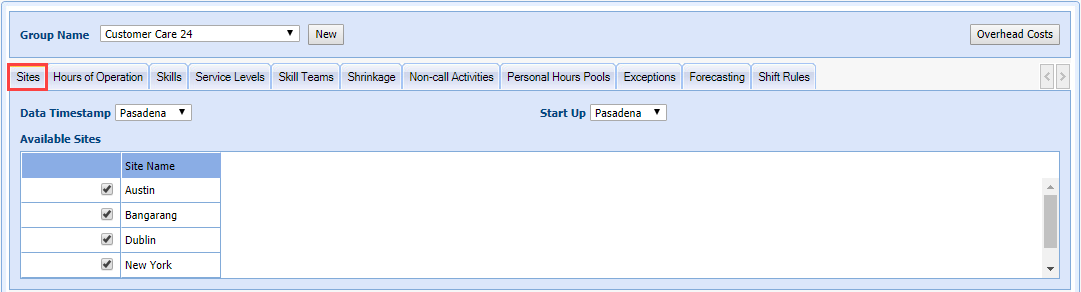
- Select Setup > Workgroups.
- Select the workgroup you want to work with
from the Group Name drop-down menu.

- Select the Sites
tab.
Create a Site
A Site in Monet reflects a location or time zone in which an employee, office, or hardware resides. A Site allows you to view all time fields in the time zone of your choice, as well as filter and view reports based on physical location. A workgroup in Monet will require at least one Site.
- Select
New above the Time
Zones section.

- Enter a name for the Site.
- Select the corresponding Time Zone. (Use the scroll bar to navigate to the desired row.)
- Enter a Description (optional).
- Select Save.
Apply Data Timestamp and Start Up
- Select the site(s) that were just created under Available Sites.
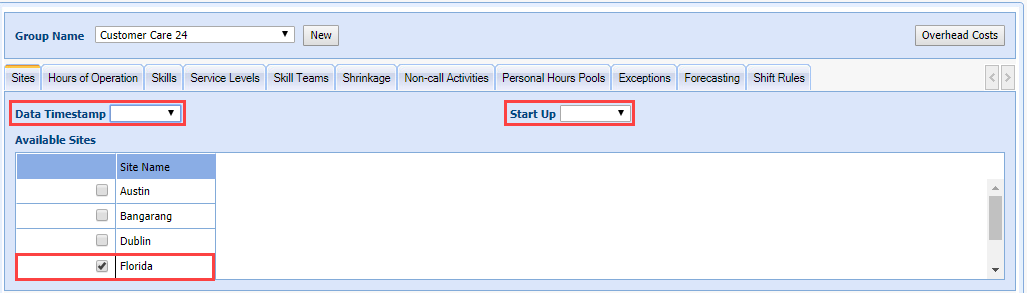
- Set one of the sites as the Data Timestamp, and one as the Start Up from the drop-down menus.
- Select Save.