Service Performance Reports
Service Performance reports help you analyze your forecasts and staffing against actual data to help you make adjustments to future planning to achieve your service level goals. You can choose various filters to see what matters most to your business, viewing data by details of skills, or overall summary data.
What do you want to do?
Tasks in this Topic Include:
Related Tasks:
Watch and Learn:
Create a Service Report
- Select Manage > Reports from the left-navigation menu.
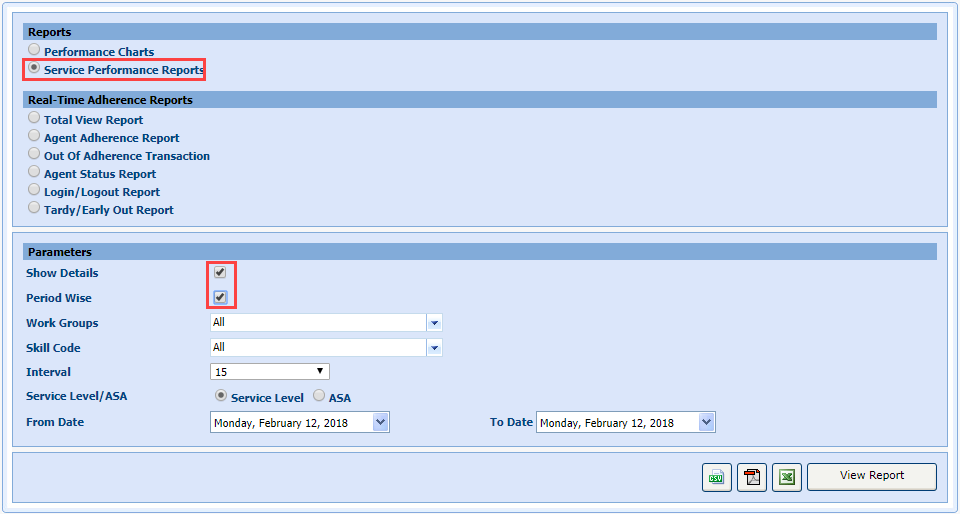
- Select the Service Performance Reports radio button.
- Select Show Details.
- Select Period Wise.
NOTE: The Period
Wise option
generates the report for the particular date range selected, and also for
the particular Skill Code selected.
- Select a work group from the Work Groups drop-down menu.
- Select a skill code from the Skill Code drop-down menu.
- Select an interval (15, 30, 60) from the Interval drop-down menu.
- Select the radio button for Service Level or ASA.
NOTE: Service level is a percentage of calls answered in a threshold. ASA, on average, is how long it takes to answer the calls.
- Select a From Date drop-down menu.
- Select a To Date drop-down menu.
- Select View Report.
NOTE: You can also
select multiple dates by using the Shift and Ctrl keys.