Answer, Abandon
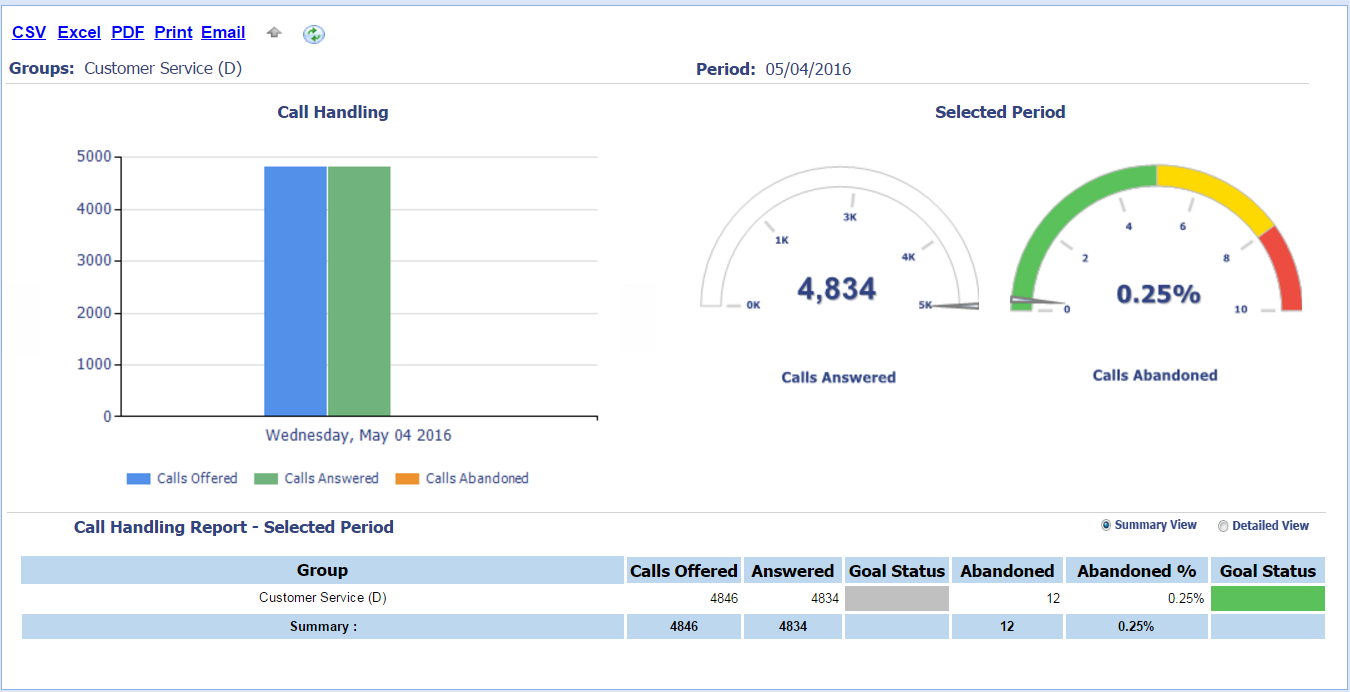
This screen allows you to generate a report based on the number of answered calls and the number of abandoned. The data generated can be used to gauge whether or not goals are being achieved. The filter region is where specific criteria is selected and applied to generate the Answer, Abandon report.
What do you want to do?
Tasks in this Topic Include:
- Access Answer, Abandon
- Select Report Parameters
- Target Resource - Workgroup
- Target Resource - Site
- Target Resource - Skill
- Target Resource - SkillTeam
- Target Resource - Supervisor
- Target Resource - Agent
- Target Resource - Employee Team
- View Reports
- Export Charts and Reports
Related Tasks:
Answer, Abandon Report
Access Answer, Abandon
- Select Metrics from the left-navigation menu.
- Select Performance.
- Select Answer, Abandon.
Select Report Parameters
NOTE: The parameters for a report depends on the Target Resource selected. Data
for each report differs by Agent
and by Skill selection.
Target Resource - Workgroup
- Select Workgroup from the Target Resource
drop-down menu.

- Select the specific workgroup from the drop-down menu to the right of the target resource.
- Select the by
Skill or by Agent radio button as required.
- If by Agent - select the Active after: date from the calendar.
- Select the Reference Period from the drop-down menu.
- Select the calendar icon to select the Period.
- Select the Status from the drop-down menu.
- Select Apply.
NOTE: Select the
Reset button to clear all fields
Target Resource - Site
- Select Site from the Target Resource
drop-down menu.

- Select the specific site from the drop-down menu to the right of the target resource.
- Select the by
Skill or by Agent radio button as required.
- If by Agent - select the Active after: date from the calendar.
- Select the Reference Period from the drop-down menu.
- Select the calendar icon to select the Period.
- Select the Status from the drop-down menu.
- Select Apply.
Target Resource - Skill
- Select Skill from the Target Resource drop-down menu.

- Select the specific skill from the drop-down menu to the right of the target resource.
- Select the by
Skill or by Agent radio button as required.
- If by Agent - select the Active after: date from the calendar.
- Select the Reference Period from the drop-down menu.
- Select the calendar icon to select the Period.
- Select the Status from the drop-down menu.
- Select Apply.
Target Resource - SkillTeam
- Select Skill Team from the Target Resource
drop-down menu.

- Select the specific skill team from the drop-down menu to the right of the target resource.
- Select the by
Skill or by Agent radio button as required.
- If by Agent- select the Active after:date from the calendar.
- Select the Reference Period from the drop-down menu.
- Select the calendar icon to select the Period.
- Select the Status from the drop-down menu.
- Select Apply.
Target Resource - Supervisor
- Select Supervisor from the Target Resource
drop-down menu.

- Select the Active after: date from the calendar icon.
- Select the specific supervisor from the drop-down menu to the right of Active After.
- Select the by
Skill or by Supervisor radio button as required.
- If by Supervisor - select the Active after: date from the calendar.
- Select the Reference Period from the drop-down menu.
- Select the calendar icon to select the Period.
- Select the Status from the drop-down menu.
- Select Apply.
Target Resource - Agent
- Select Agent from the Target Resource
drop-down menu.

- Select the Active after: date from the calendar icon.
- Select the specific agent from the drop-down menu to the right of Active After.
- Select the by
Skill or by Agent radio button as required.
- If by Agent - select the Active after: date from the calendar.
- Select the Reference Period from the drop-down menu.
- Select the calendar icon to select the Period.
- Select the Status from the drop-down menu.
- Select Apply.
Target Resource - Employee Team
- Select Employee
Team from the Target Resource
drop-down menu.

- Select the Active after: date from the calendar icon.
- Select the specific agent from the drop-down menu to the right of Active After.
- Select the by
Skill or by Agent radio button as required.
- If by Agent - select the Active after: date from the calendar.
- Select the Reference Period from the drop-down menu.
- Select the calendar icon to select the Period.
- Select the Status from the drop-down menu.
- Select Apply.
Viewing Reports
The report selected is displayed:
NOTE: Use the view
options to review different levels of detail.
- Select the Summary View radio button to review the total calls from each category.
- Select the Detailed View radio button to review a breakdown of each call by Skill or Supervisor/Agent.
Export Charts and Reports
Select the CSV, Excel, PDF, Print, or Email link from the charting region.