Adherence
This screen allows you to generate a report based on adherences and goal statuses. For instance, review the percentage of time agents were in adherence and also their goal status according to specific criteria. The filter region is where specific criteria is selected and applied to generate the Adherence report.
What do you want to do?
Tasks in this Topic Include:
- Access Adherence
- Target Resource - Workgroup
- Target Resource - Site
- Target Resource - Skill Team
- Target Resource - Supervisor
- Target Resource - Agent
- Target Resource - Employee Team
- Viewing Reports
- Chart Descriptions
- Export Charts and Reports
Related Tasks:
Adherence Report
Access Adherence
- Select Metrics from the left-navigation menu.
- Select Performance.
- Select Adherence.
Select Report Parameters
Select the report parameters for the desired report as follows:
Target Resource - Workgroup
- Select Workgroup
from the Target Resources drop-down menu.

- Select the calendar icon to select the Active after: date.
- Select the specific workgroup from the drop-down menu to the right of the Active after: date.
- Select the Reference Period drop-down menu.
- Select the calendar to set the Period.
- Select the Status from the drop-down menu.
- Select Apply.
Target Resource - Site
- Select Site
from the Target Resources drop-down menu.

- Select the calendar icon to select the Active after: date.
- Select the specific site from the drop-down menu to the right of the Active after: date.
- Select the Reference Period drop-down menu.
- Select the calendar to set the Period.
- Select the Status from the drop-down menu.
- Select Apply.
Target Resource - Skill Team
- Select SkillTeam
from the Target Resources drop-down menu.

- Select the calendar icon to select the Active after: date.
- Select the specific SkillTeam from the drop-down menu to the right of the Active after: date.
- Select the Reference Period drop-down menu.
- Select the calendar to set the Period.
- Select the Status from the drop-down menu.
- Click Apply.
Target Resource - Supervisor
- Select Supervisor
from the Target Resources drop-down menu.

- Select the calendar icon to select the Active after: date.
- Select the specific Supervisor from the drop-down menu to the right of the Active after:date.
- Select the Reference Period drop-down menu.
- Select the calendar to set the Period.
- Select the Status from the drop-down menu.
- Select Apply.
Target Resource - Agent
- Select Agent
from the Target Resources drop-down menu.

- Select the calendar icon to select the Active after: date.
- Select the specific workgroup from the drop-down menu to the right of the Active after: date.
- Select the Reference Period drop-down menu.
- Select the calendar to set the Period.
- Select the Status from the drop-down menu.
- Select Apply.
Target Resource - Employee Team
- Select Employee
Team from the Target Resources
drop-down menu.

- Select the calendar icon to select the Active after: date.
- Select the specific workgroup from the drop-down menu to the right of the Active after: date.
- elect the Reference Period drop-down menu.
- Select the calendar to set the Period.
- Select the Status from the drop-down menu.
- Select Apply.
Viewing Reports
The report selected is displayed:
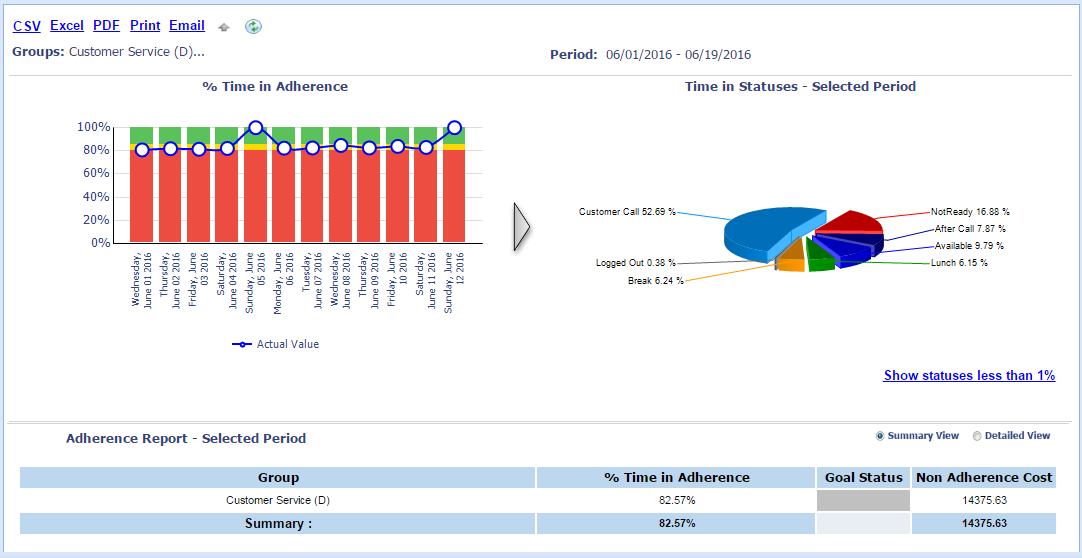
- Select the Summary View radio button to review the summarized adherence details.
- Select the Detailed View radio button to review adherence details by Supervisor and Agent.
Chart Descriptions
The following descriptions are provided for additional information.
|
Column |
Description |
|---|---|
|
% Time in Adherence |
Shows the actual value for % Time in Adherence |
|
Goal |
Indicates the goal |
|
Status |
Displays a colored icon or cell, based on actual vs. goal (see logic described in section Metrics Common Components) |
|
Non-Adherence Cost |
Represents the cost of non-adherence calculated as (total cost for the specific resource) *(value represented in the previous column as total) |
Export Charts and Reports
Select the CSV, Excel, PDF, Print, or Email link from the charting region.