Manage Reports
Reports under Manage contain Performance Charts and Service Performance Reports. Real-Time Adherence Reports are also available.
What do you want to do?
Tasks included in this topic:
- Generate a Total View Report
- Generate an Agent Adherence Report
- Generate an Out Of Adherence Transaction Report
- Generate an Agent Status Report
- Generate a Login/Logout Report
- Generate a Tardy/Early Out Report
Related Tasks:
Generate a Total View Report
The Total View Report is a snapshot of the Real Time Adherence screen at the time the report is run. It lists the scheduled and actual state and time stamp for individual agents by Workgroup.
- Select Manage > Reports from the left-navigation menu.
- Select the Total View Report radio button.
- Enter the report parameters as desired.
- Employee Team
- Work Groups
- Select View Report.

Generate an Agent Adherence Report
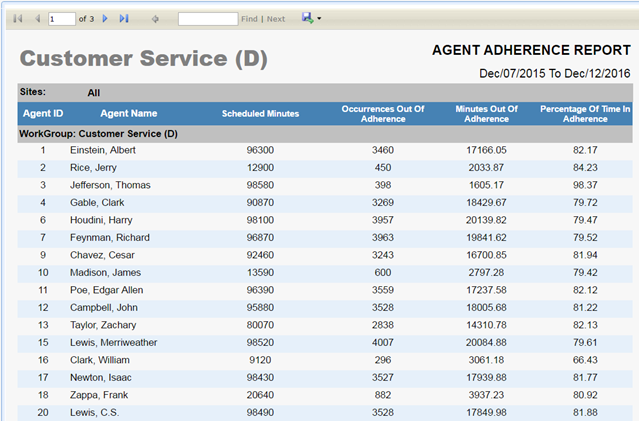
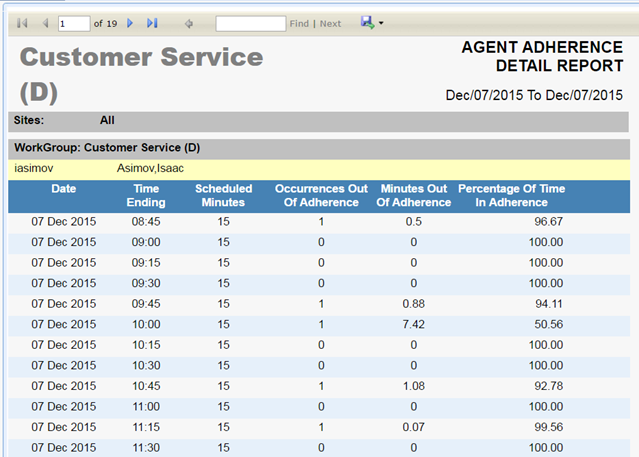
The Agent Adherence Report is the Agent adherence score for the period selected. It lists the scheduled minutes, number of out of adherence occurrences, minutes out of adherence, and percentage of time in adherence for individual agents for a Workgroup for a period of time in either a Summary or Detail view. The Detail view reports on individual agents for each time interval.
- Select Manage > Reports from the left-navigation menu.
- Select the Agent Adherence Report radio button.
- Enter the report parameters as desired.
- Skill Team
- Site
- Employee Team
- Sort By
- Summary/Details
- Work Groups
- From Date
- To Date
- Select View Report.
- Summary
- Detailed
- Summary
Generate an Out Of Adherence Transaction
The Out Of Adherence Transaction Report is a list of the activity that put the agent(s) out of adherence for the dates selected. It lists the number of out of adherence transactions, and the specified minimum length of the out of adherence transactions for specified Skill teams, Sites, Employees, Employee Teams, or Workgroups for a time period.
- Select Manage > Reports from the left-navigation menu.
- Select the Out Of Adherence Transaction Report radio button.
- Enter the report parameters as desired.
- Skill Team
- Site
- Employee
- Employee Team
- Work Groups
- No. Of Transactions (1 to 5, 6 to 10, 22 to 25, 26 and more)
- Or Min Length Of Transaction (1, 3, 5, 10, 15 Min[s])
- From Date
- To Date
- Select View Report.
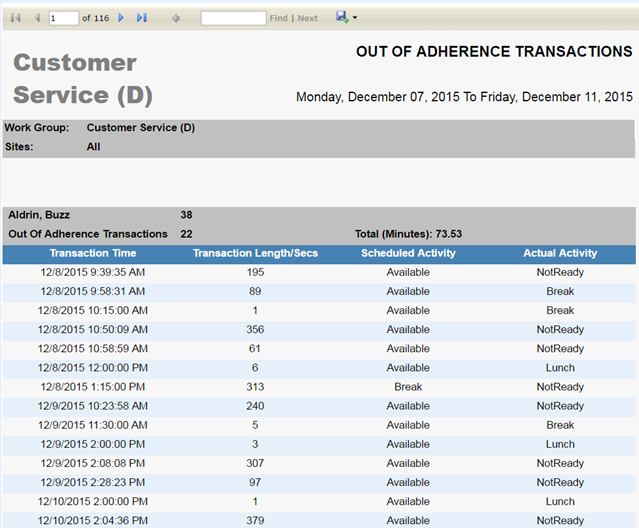
Generate an Agent Status Report
The Agent Status Report is detailed agent phone status data for the period selected. It lists the start time and duration of individual agents statuses organized by Skill Team, Employee Team, Events, and Workgroups, and Scheduled Activities for a specified time period.
- Select Manage > Reports from the left-navigation menu.
- Select the Agent Status Report radio button.
- Enter the report parameters as desired.
- Skill Team
- Employee
- Employee Team
- Events
- Work Groups
- From Date
- To Date
- Include Scheduled Activities
- Select View Report.

Generate a Login/Logout Report
The Login/Logout report lists the timestamps for all Login and Logout events by using the Working Status settings. The report lists the Scheduled and Actual Start and
End times, the Tardy/ Late status and duration. Additionally, the total duration Login/Logout times are supplied for each event, day, with a grand total for the date range of the report.
- Select Manage > Reports from the left-navigation menu.
- Select the Login/Log Out radio button.
- Enter the report parameters as desired.
- Skill Team
- Site
- Employee
- Employee Team
- Work Group
- Tardy/Early Out Threshold in minutes.
- From Date
- To Date
- Select View Report.

Generate a Tardy/Early Out Report
The Tardy/Early Out report compares an agent’s scheduled shift with their login/logout information created using the Working Statuses settings. Any login that occurs after
a specified period of time past the scheduled start of their shift is considered Tardy; and receives a Y in the Tardy column. When the last logout of the day is
detected before a specified period of time before the scheduled end of their shift, this is considered Early Out; and a Y is placed in the Early Out column.
- Select Manage > Reports from the left-navigation menu.
- Select the Tardy/Early Out radio button.
- Enter the report parameters as desired.
- Skill Team
- Site
- Employee
- Employee Team
- Work Group
- Tardy/Early Out Threshold in minutes
- From Date
- To Date
- Select View Report.
