New Bids
Supervisors can create a new shift and allow agents to bid on getting assigned to the shift.
What do you want to do?
Tasks in this Topic Include:
Related Tasks:
- Agent Schedules
- Schedule Change Requests
- Agent Bids
- Schedule Swap Requests
- Agent Exceptions
- My Alerts
- Change Password
View Bids
To view shifts to be bid on:
- Select New Bids in
the left-navigation menu.
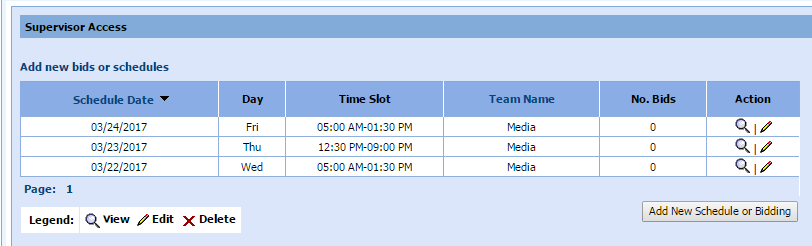
View Bid Details
To view shift details:
- Select the magnifying glass in the Action column
to display details about a shift.
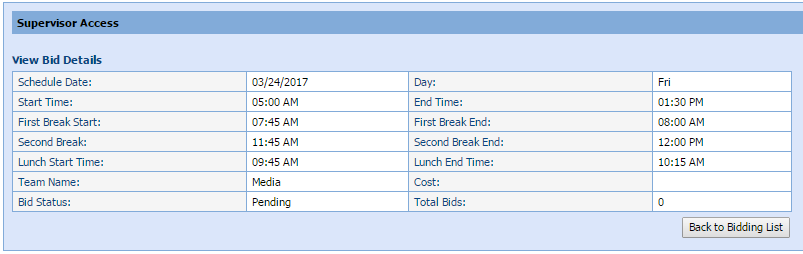
Add New Schedule or Bidding
To add a new schedule or bidding:
- Select Add New Schedule or Bidding.
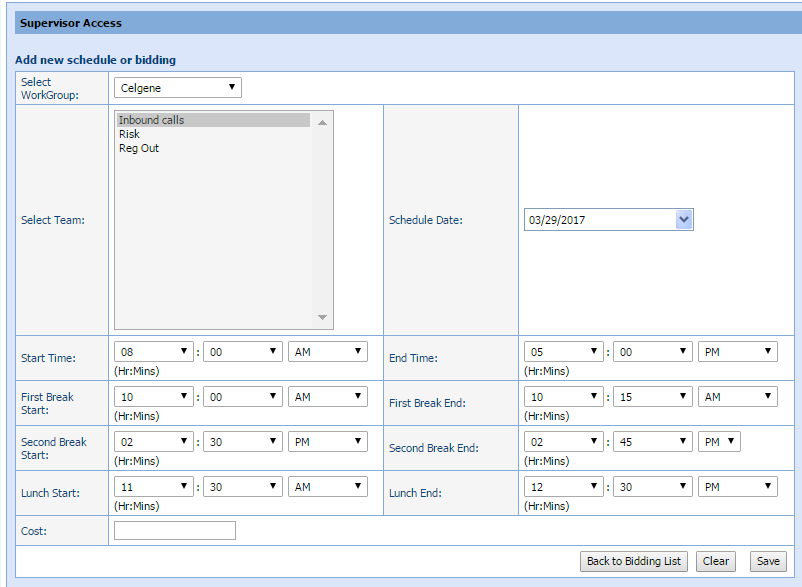
- Select the applicable WorkGroup from the drop-down menu.
- Choose a team that can bid on the schedule from the Select Teamlisting.
- Select the Schedule Date from the drop-down menu.
- Select a Start Time for the schedule from the drop-down menu.
- Select a End Time for the schedule from the drop-down menu.
- Select a First Break Start time for the schedule from the drop-down menu.
- Select a First Break End time for the schedule from the drop-down menu.
- Select a Second Break Start time for the schedule from the drop-down menu.
- Select a Second Break End time for the schedule from the drop-down menu.
- Select a Lunch Start time for the schedule from the drop-down menu.
- Select a Lunch End time for the schedule from the drop-down menu.
- Enter a Cost for the shift.
- Select Save.
- A confirmation window is displayed.
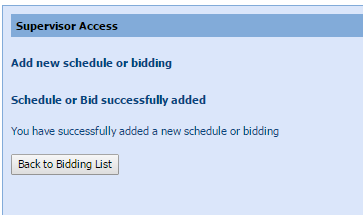
- Select Back to Bidding List.
Edit a Schedule
To edit a schedule for bidding:
- Select the edit icon in the Action column.
- The Schedule Detail window is displayed:
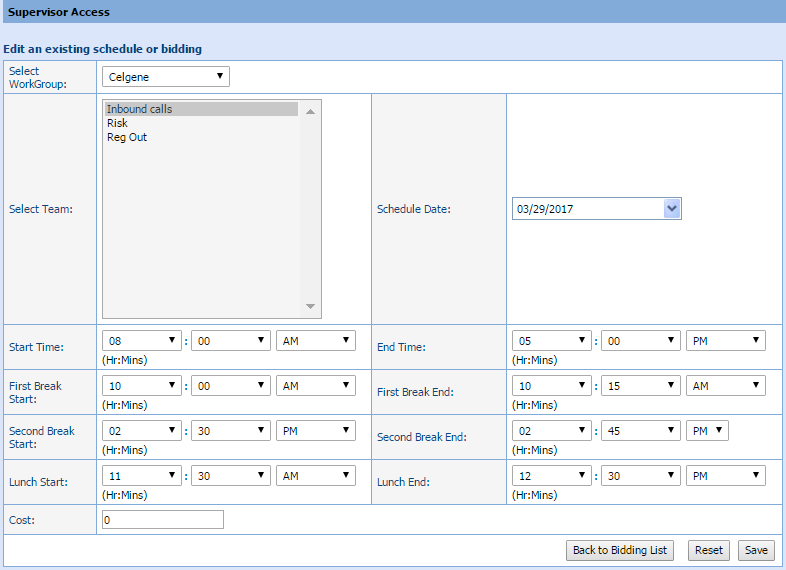
- Edit the schedule as required.
- Select Save.