Monet Record Roles
Monet Record features several distinct roles.
What do you want to do?
Tasks in this Topic Include:
- Administrator Role
- Supervisor
- Agent
- Changing User Roles
- Filtering Recordings
- Working With Tags
- Observing Live Calls
- Set Scorecard Rankings
Related Tasks:
- Live Call Observing
- Manage Recording Users
- Recording Tags
- Recordings Browsing
- Quality Scorecards
- Scorecard Ranking
- Standalone Scorecard
Administrator Role
The administrator role has full editing and filtering ability including the following capabilities:
Changing User Roles
Administrators can change the role of Monet Record users.
To change a user role:
- Select Employees in the left-navigation menu.
- Select Employee List.
- Highlight an employee in the list, and select Edit.
- Select Monet Record.

- Select the Record Role from the drop-down menu.
- Select Save.
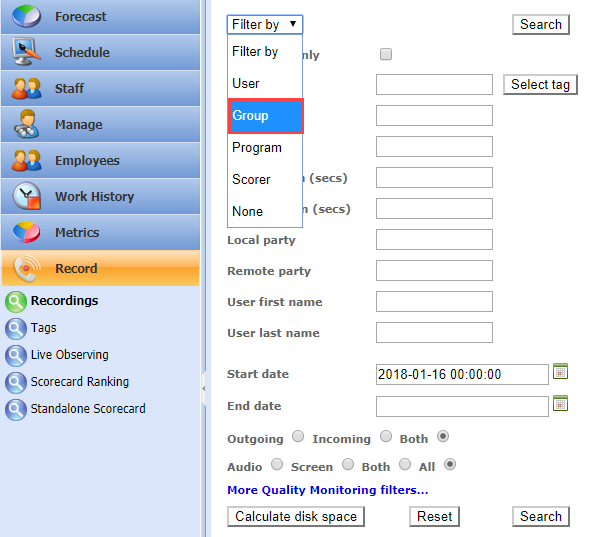
Filtering Recordings
Ability to filter by work groups to view users within the tenant.
To filter recordings:
- Select Record from the left-navigation menu.
- Select Recordings.
- Select a filter from the Filter by drop-down menu.
Working With Tags
Ability to View, Edit, Delete, or Create tags.
To work with tags:
- Select Record from the left-navigation menu.
- Select Tags.
- Use the page navigation controls to navigate to the tag pages as required.
- Select view to view tag details.
- Select Edit to edit the tag details.
- Select the check box of the tag to delete, and
then select Delete from the
drop-down menu to delete the tag.

- Select ok to confirm deletion of the selected tag.
- Select Create new to create a new tag.
- Select Edit.
- Enter a Tag type name, Description, and select Select owner.
- Select the radio button of the user to make him/her the owner of the tag.
- Select Select user.
Observing Live Calls
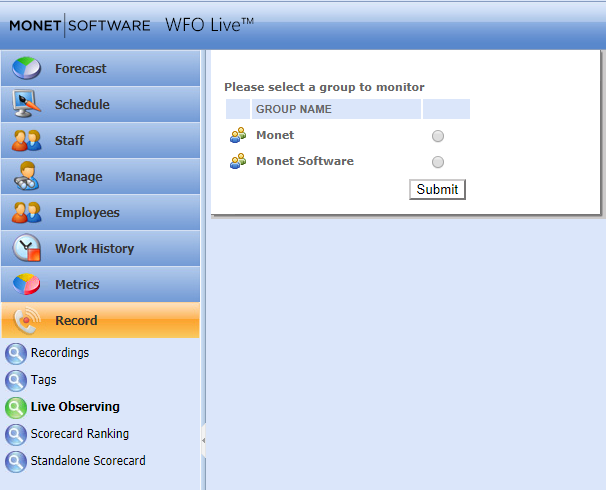
Observe users from any work group
To observe a user during a call session:
- Select Record from the left-navigation menu.
- Select Live Observing.
- Select the radio button of the group to observe.
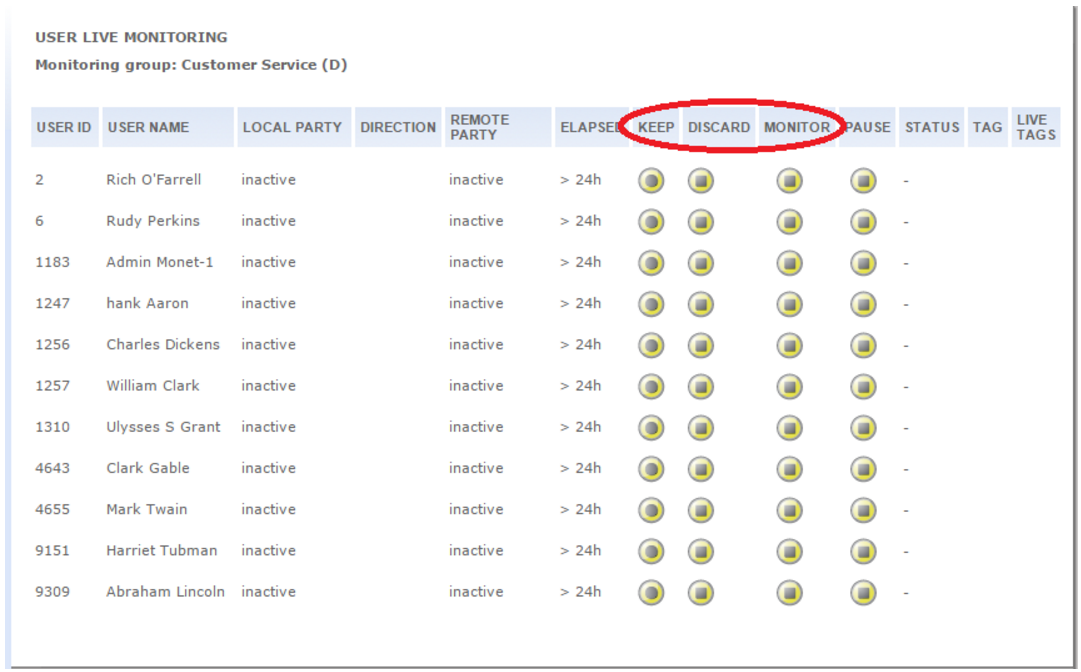
- Select the Monitor radio button to monitor the agent. Select Pause to pause the monitoring as required.
- Select the Keep
radio button or Discard radio
button as desired to save or discard the recording.
Set Scorecard Rankings
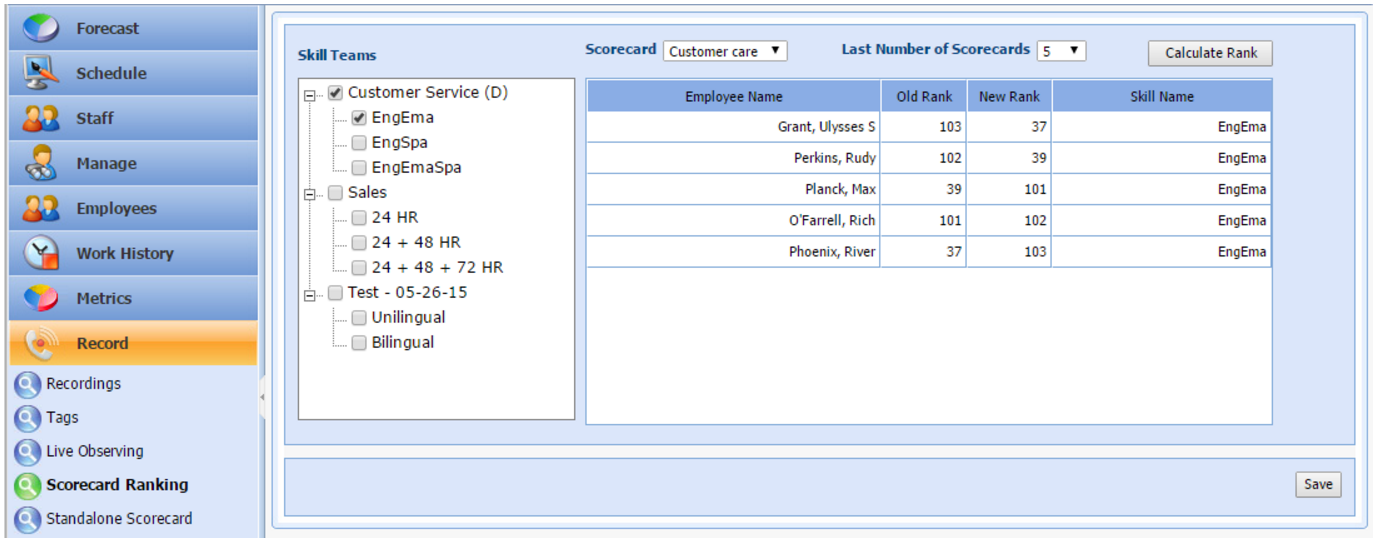
To set the scorecard ranking of members of a Skill Team:
-
Select Record in the left-navigation menu.
-
Select Scorecard Ranking.
-
Select the check box(es) of the Skill Teams to score.
-
Select the Scorecard to use from the drop-down menu.
-
Select the Last Number of Scorecards to use in the calculation from the drop-down menu.
-
Select Calculate Rank.
-
Select Save.
Supervisor
Supervisors have the following capabilities:
Changing User Roles
The supervisor has the same ability to change user roles as the administrator.
Record/Recordings
Supervisors only have access to their own work group. No filter by group option is available.
Record/Tags
Supervisors do not have the ability to edit tags. They only have access to tags within their own work group.
Record/Live Observing
Supervisors can view all Record Users from their own work group.
Record Scorecard Ranking
Supervisor does not have access to this page.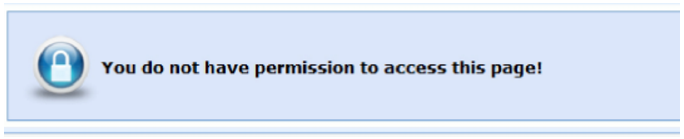
Agent
Agents only have access to Recordings and Live Observing.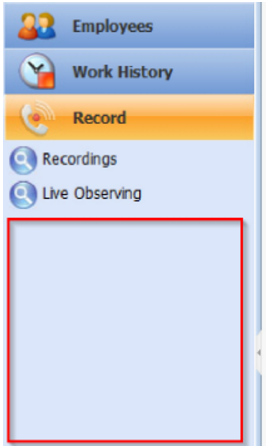
Record/Recordings
Agent does not have the ability to filter. Access only to personal recordings.
Record/Live Observing
Agent can only view personal recordings. They cannot filter or select multiple agents.