Set Exception Codes
Exception codes can be added through the Employees > Employee List; Staff > View Roster by Agent and Graphical View; and Manage > Exception Calendar and Meeting Planner.
What do you want to do?
Tasks in this Topic Include:
- Add Exception from Employee List
- Add Exception from View Roster By Agent
- Add Exception from Graphical View
Related Tasks:
Add Exception from Employee List
- Select Employees > Employee List from the left-navigation menu.
- Select an employee (agent) from the employee table.

- Select the Edit button located at the bottom of the table.
- Select the Exceptions tab.

- Click a Date in the calendar.
- Select Mid-Day under Type.
- Select Add Row.
- Select the Exp cell, and select an exception code from the drop-down.
- Fill in Impact, Start, End, Working, Override, TimeOff.
- Enter a Reason for the exception.
- Select Save.
Exception Conflict Resolution
When an exception conflicts with another scheduled activity, the existing activity can be overridden, moved, truncated, or preserved. Preserve allows administrators to enter a full day's schedule of mid-day exceptions, and have Monet automatically create exceptions around the other existing activities like Breaks, lunch, non-call, and other exceptions.
Before the Roster is Generated
Preserve becomes an option before the schedule is generated if:
- The user inputs a new mid-day exception that conflicts with an existing mid-day exception.
- The new exception must conflict and be greater than either the start or end time of the existing exception, or both.
After the Roster is Generated
Preserve becomes available if there are any conflicts with existing activities other than "Available" time:
- Breaks
- Lunch
- Non-call
- Mid-day negative or neutral exceptions
Overlap
The new exception only occupies the space before or after the existing exception. If there is a Full-Overlap that Exceeds Both Start and End Times of an Existing Exception, two new exceptions are created to fill in the space around the existing exception; and the existing exception is left intact.
Personal Hours and Time Off Hours Handling
If the new exception contains Personal Hours or Time Off hours, the value for the exception being entered is split proportionally across the new exceptions being created.
Break and Lunch
- Move/Move Always/Override break and lunch handling is taken from the exception as it is created.
- The conflict resolution dialogue is only shown when a break or lunch will be overridden, regardless of the Move/Move Always/Override user selection. When this dialog is received, Preserve is an option. If the break or lunch can be moved with the Move/Move Always selection, the dialogue is not shown.
- The dialog is always brought up if Override is selected, and an existing activity will be deleted.
- The
Preserve option will always display
except in one case:
- The exception does not exceed either the start nor the end of the existing activity (multiple if the existing activities are adjacent).
- If neither the start nor end time of the new exception goes beyond the start or end time of the existing activities, then the Preserve option is not displayed.
- When the user selects Override, the conflict dialogue is brought up. The user selects Preserve, then the breaks and lunch are kept in place.
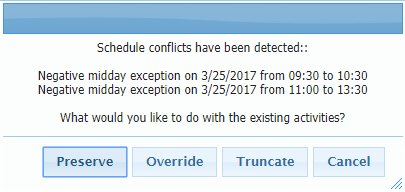
- If an exception conflicts with other scheduled activities, the exception
entry conflict dialog displays showing where conflicts were detected.
Choose to Preserve the existing
activities, Override, Truncate,
or Cancel the exception addition.
Add Exception from View Roster By Agent
- SelectStaff > View Roster By Agent.
- Select
the Exceptions tab.
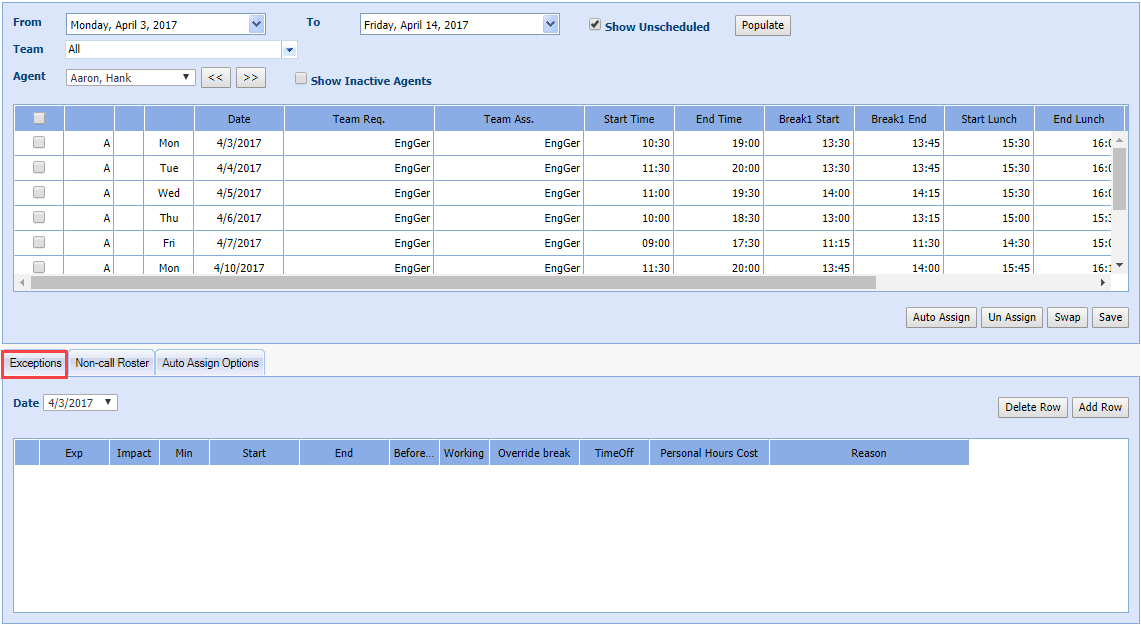
- Select Add Row.
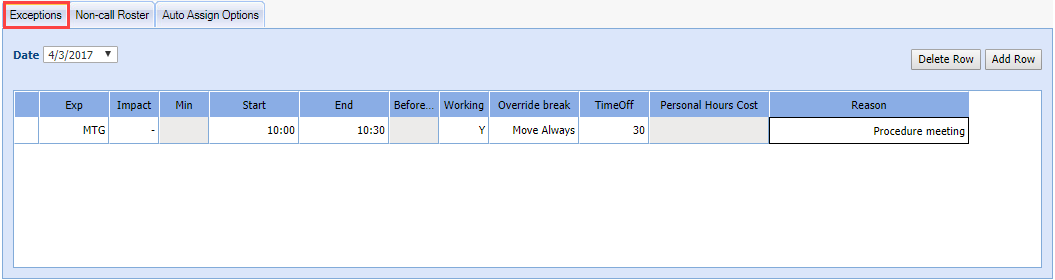
- In the Exp cell, select an exception code from the drop-down.
- Fill inImpact, Start, End, Working, Override, TimeOff.
- Enter a Reason for
the exception. Select Save.
Add Exception from Graphical View
- Select Staff > View Roster By Agent.
- Select Graphical View.
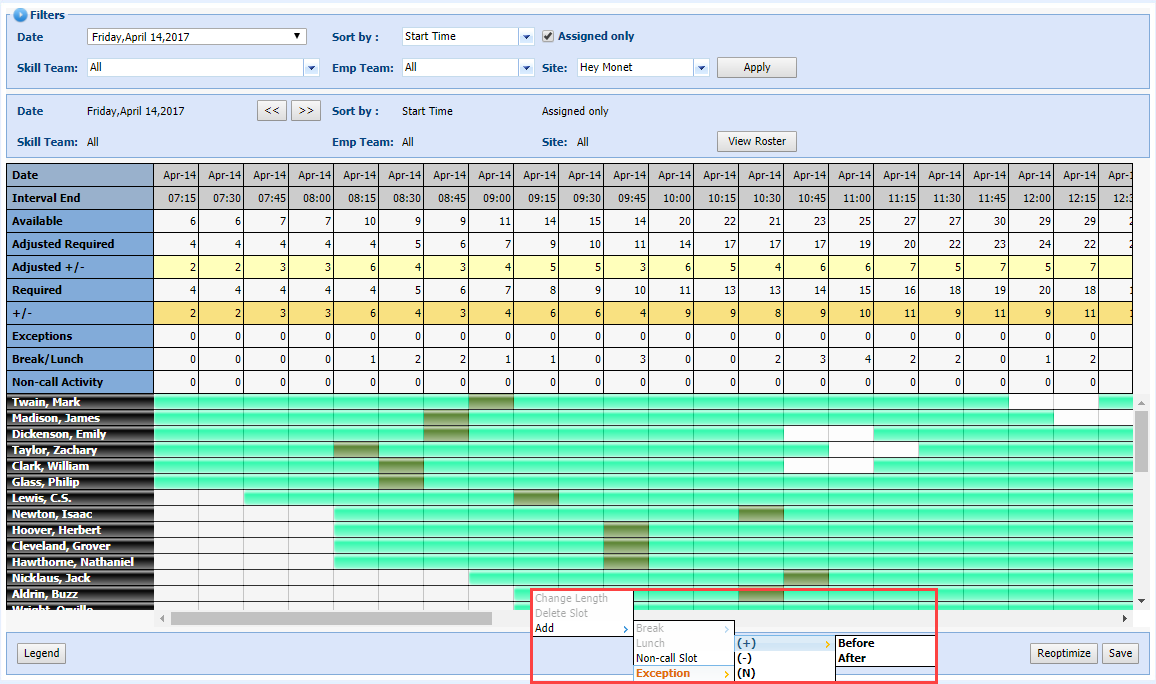
- Right-click on an interval for the desired agent.
- Select Add > Exception.
- Select Plus (+), Minus (-), or Neutral (N).
| Field | Description |
|---|---|
| Plus | Use Plus (+) if an agent is working overtime. Also select Before or After their schedule. |
| Minus | Use Minus (-) if the absence has a negative impact. |
| Neutral | Use Neutral (N) if an agent is working an entire day of overtime. |
- If
you select Plus
(+), choose Before or After.
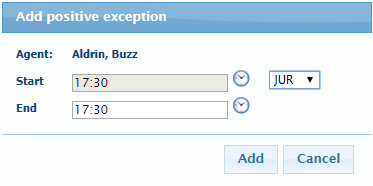
- Enter the Start and End times.
- Select the Exception Code from the drop-down.
- Click Add.
- If you select Minus (-):
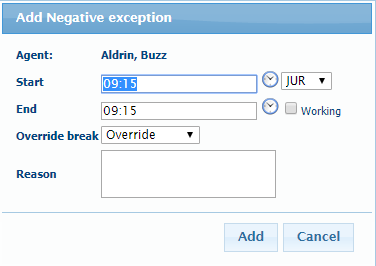
- Enter the Start, End times.
- Select the Exception Code from the drop-down.
- Check Working, if needed.
- Select the Override break option (Move, Move Always, Override) from the drop-down.
- Enter a Reason, if desired.
- Click Add.
- If you select Neutral (N):
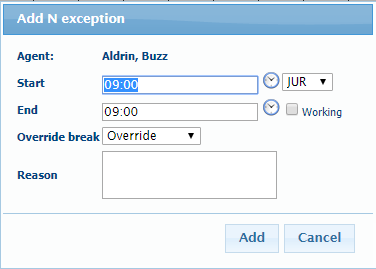
- Enter the Start, End times.
- Select the Exception Code from the drop-down.
- Check Working, if needed.
- Select the Override break option (Move, Move Always, Override) from the drop-down.
- Enter a Reason, if desired.
- Click Add.