Generate Charts
This option is useful when you have prepared and assigned a schedule, and you want to compare the employees from the original schedule to the number assigned to the schedule. Each chart is presented with a radio button next to it.
NOTE: Supported
file formats are CSV, PDF, and XLS.
What do you want to do?
Tasks in this Topic Include:
Related Tasks:
- Set Open / Close Days
- Exception Codes
- Employee Templates
- Employee List
- Exception Calendar and Meeting Planner
- Inactive Employees
- Generate Rosters
- Change Rosters - Inbound Calls
- Reports
- Employee Reports
Total Staffing Chart
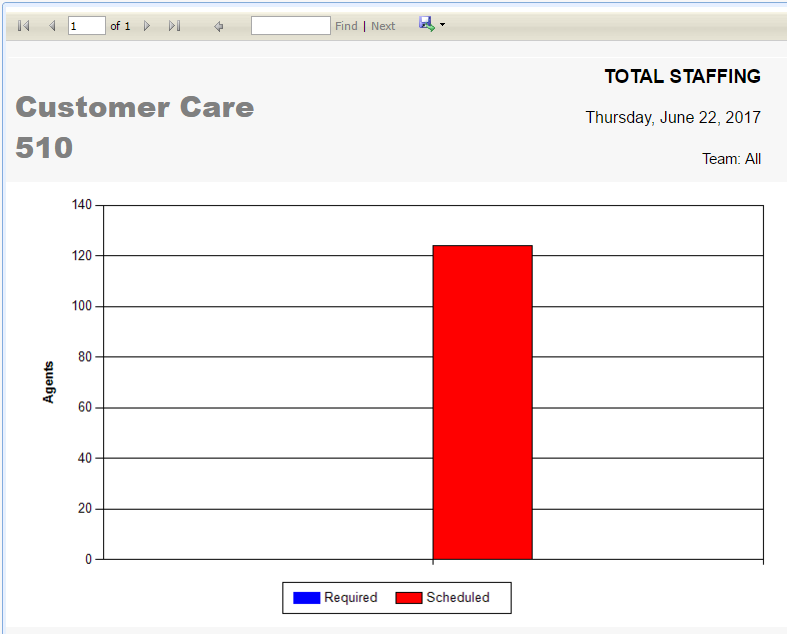
The bottom section of the screen lets you print a chart that shows a Total Staffing Chart for a given team and date.
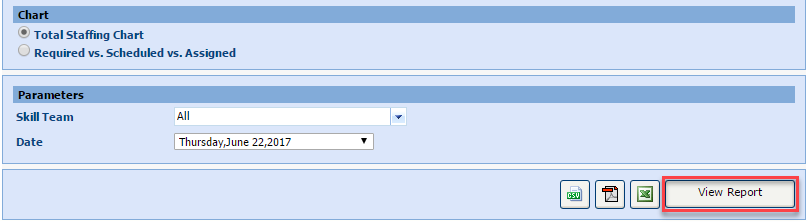
- Select Reports from the Staff left-navigation menu.
- Click the Total Staffing Chart radio button.
- Select a team from the Skill Team drop-down menu.
- Select a date from the Date drop-down menu.
- Select View Report.
- The chart is displayed.
Required vs. Scheduled vs. Assigned Chart
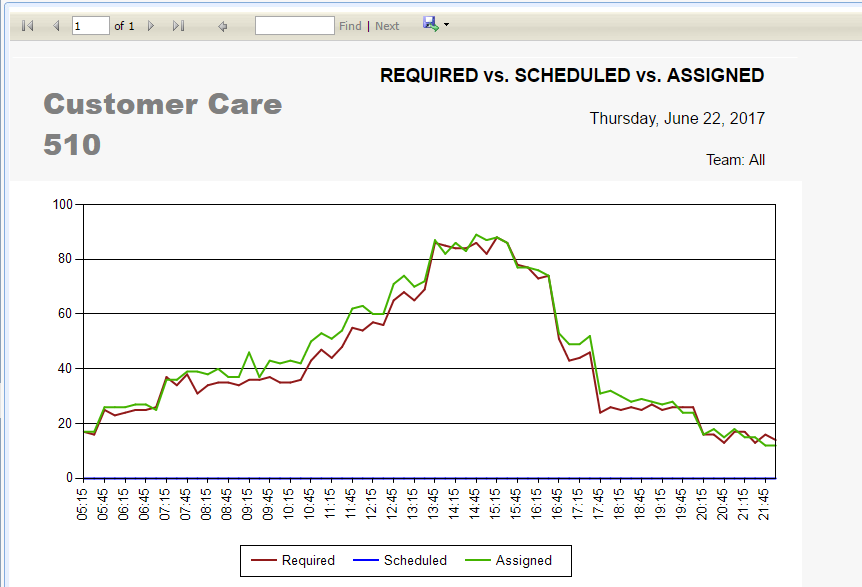
The bottom section of the screen lets you generate a chart that shows the Required vs. Scheduled vs. Assigned employees for a given team and date.
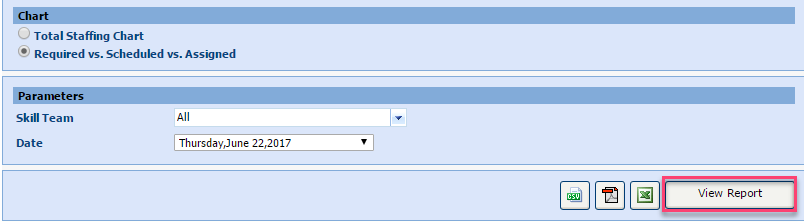
- Select the Required vs. Scheduled vs. Assigned radio button.
- Select a team from the Skill Team drop-down menu.
- Select a date from the Date drop-down menu.
- Select View Report.
- The chart is displayed.