My Agent Homepage
Agents can view their schedules, submit requests for time off, swap shifts, bid on shifts, and change their password.
What do you want to do?
Tasks in this topic include:
- View Agent Exception Alerts
- Bid/Schedule Alerts
- My Agent Homepage
- Highlight
- Make a Schedule Change Request
Related Tasks:
- My Schedule
- My Schedule Changes
- My Schedule Adherence
- Schedules for Bidding
- My Bids
- My Alerts
- Change Password
View Agent Exception Alerts
NOTE: Exception
Alerts are requests for changes in schedules or availability. The alerts
are grouped by type in the display. Select a link to navigate to the specific
alert you wish to view.
To view your exception alerts:
- Select Anywhere > Home in the left navigation menu.
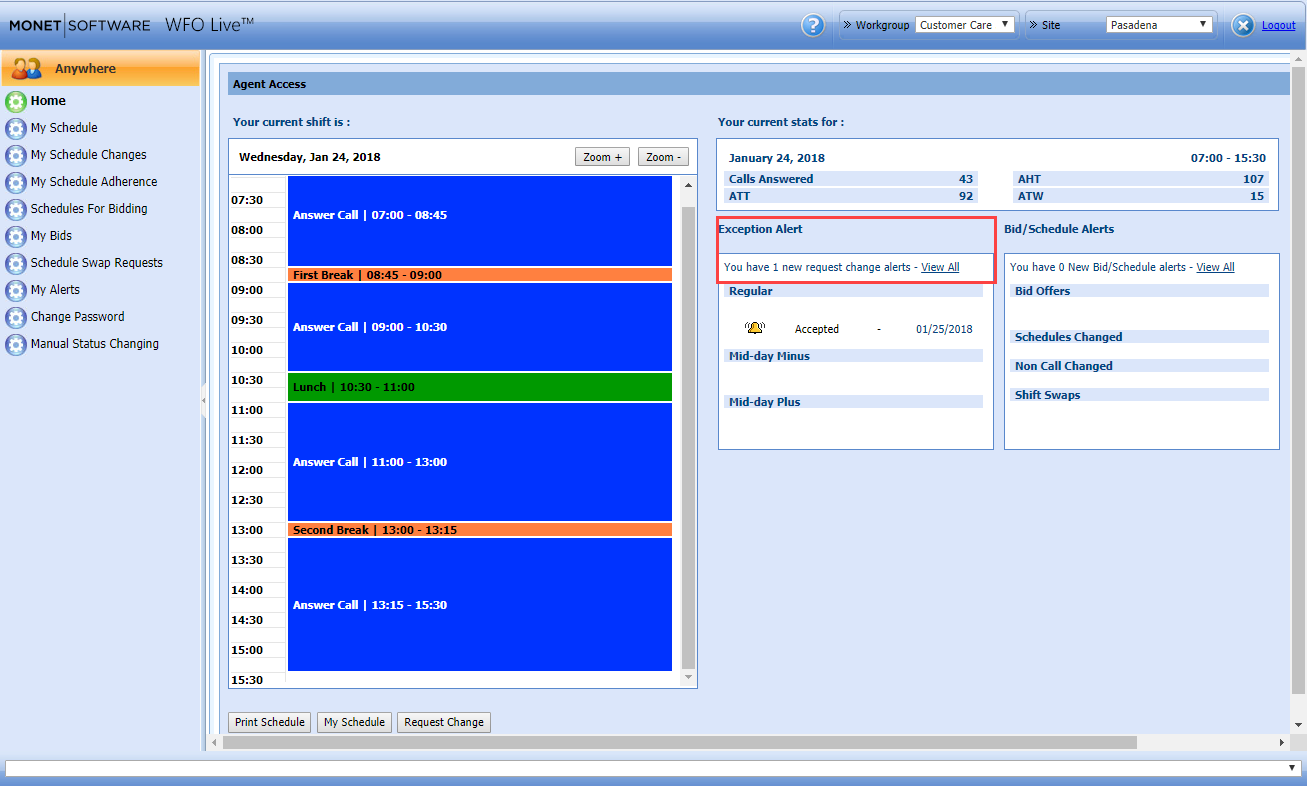
- Under Exception Alert select a link to view the alert details.
NOTE: A ringing
bell icon denotes an accepted exception.
Bid/Schedule Alerts
Bid/Schedule alerts are grouped by type in the display window. Select a link to navigate to the specific alert you wish to view.
To view your bid/schedule alerts:
- Select Home in the left navigation menu.
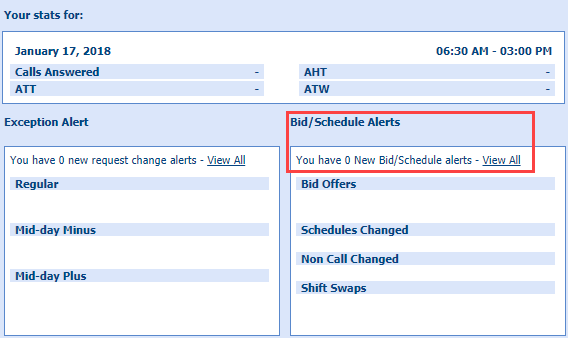
- Under Bid/Schedule Alerts select a link to view the alert details.
Review My Schedule
To review your schedule:
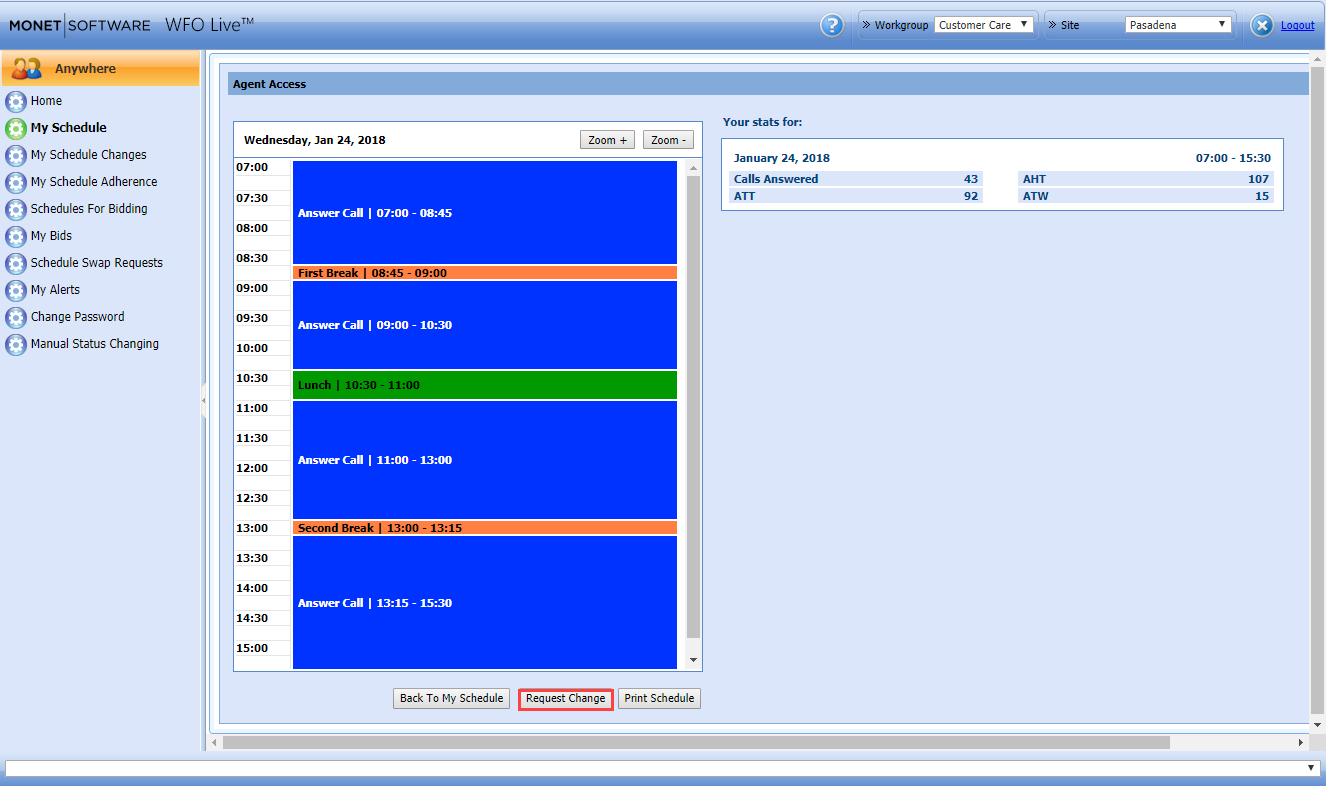
- Select My Schedule in the left navigation menu.

-
Click on a single day in the calendar where you are scheduled (blue) to view details of that day.
Highlight
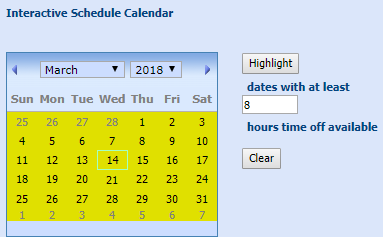
You can view dates with at least a specific number of hours available for time off.
- Enter the number of hours in the dates with at least field.
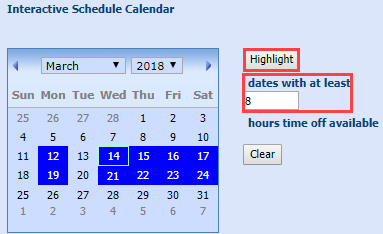
- Click Highlight. All available dates are highlighted in yellow.
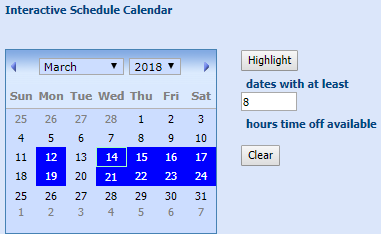
- Click Clear.

- The display returns to the original blue highlighted days.
Make a Schedule Change Request
Changes to your schedule can be requested as a bulk change to multiple consecutive days, or to a single day change.
NOTE: The Schedule
Change Request form fields are unique to each exception. For example,
a mid-day exception type displays both an Impact (- or +) drop-down menu, and Start and End Time fields
where the request applies. Requests for Personal Time Off (Vacation,
Sick Day) displays a Personal Hours Cost field to track the time off against the available pool.
To request a schedule change:
- Select My Schedule from the left navigation menu.
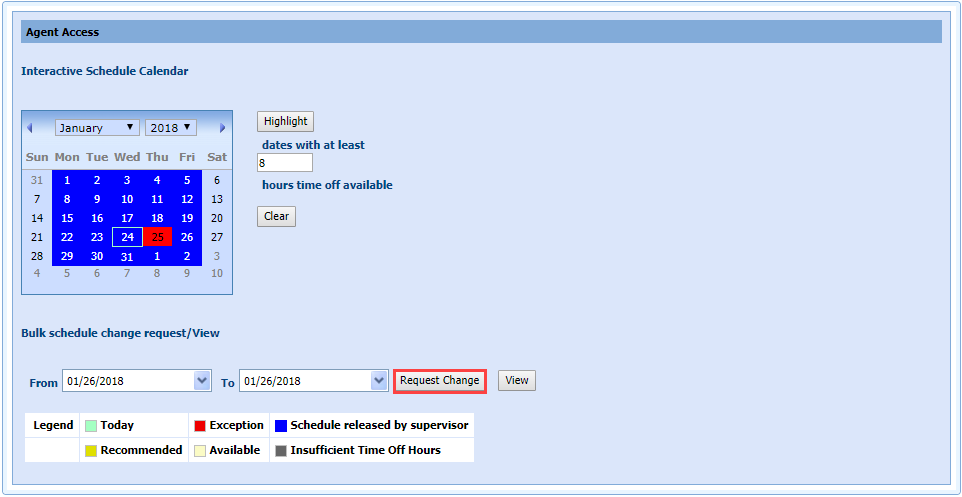
- Select a date from the calendar.
- Click the Request Change button.
- Select the Exception type from the drop-down menu (Regular, Mid-day).
- If Mid-day is selected, the Impact field will display.
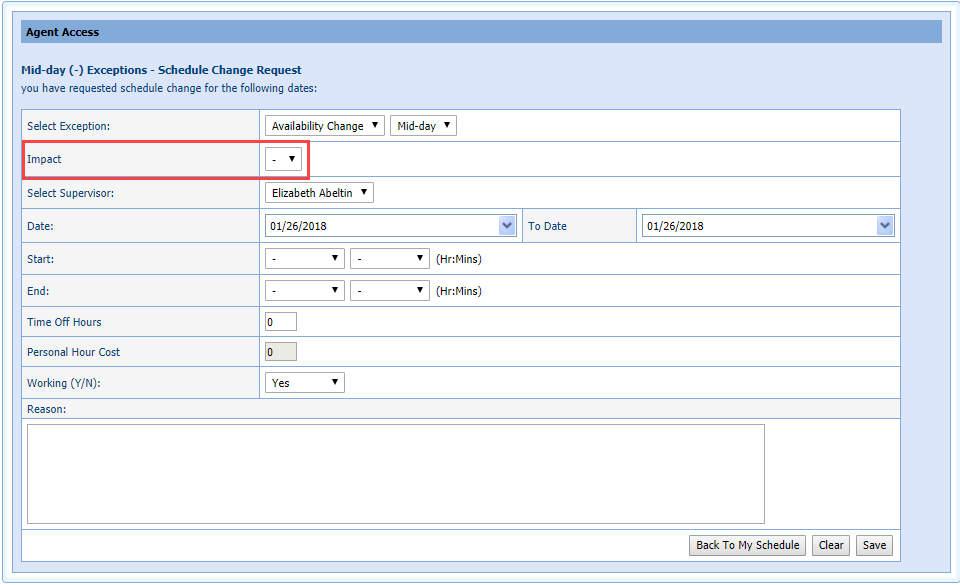
- For the Impact field, select minus (_) or plus (+).
- Select the Supervisor from the drop-down list.
- The Date is pre-populated with the selected date. Change the date range as desired to cover the period of the request.
- Select the Start: and End: times.
- Enter the Time Off Hours.
- Enter the Personal Hours Cost.
- Select Working (Y/N) from the drop-down menu.
- Enter a Reason for the exception.
- Click Save.
- If Regular is selected as the exception type:
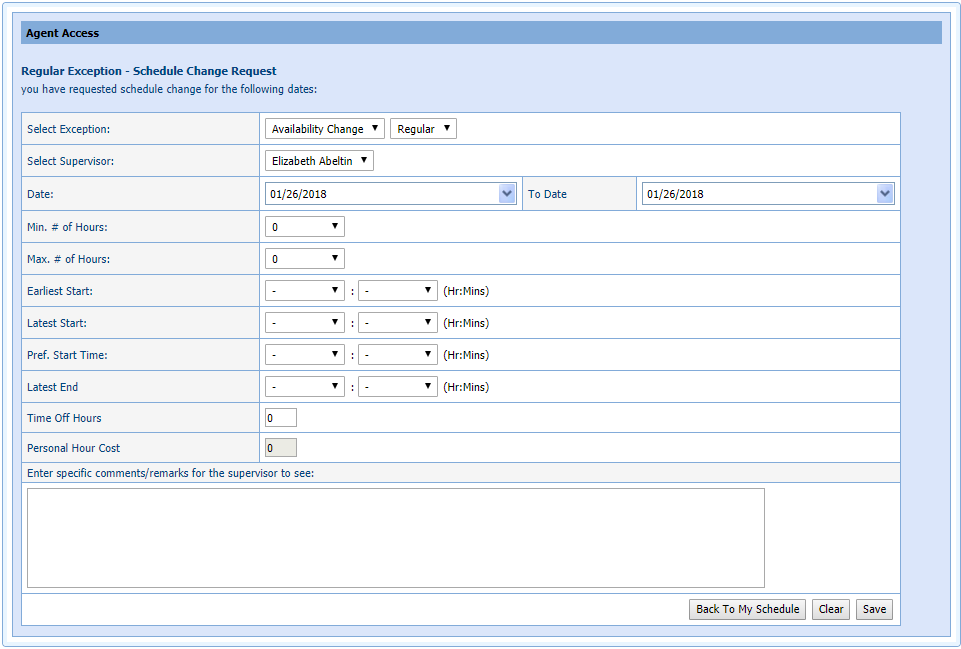
- Select the Supervisor from the drop-down list.
- The Date is pre-populated with the selected date. Change the date range as desired to cover the period of the request.
- Select the Min # of Hours and Max # of Hours.
- Select the Earliest Start and Latest Start time.
- Select the Pref. Start Time.
- Select the Latest End time.
- Enter the Time Off Hours.
- Enter the Personal Hour Cost.
- Enter specific comments/remarks for the supervisor to see in the text box.
- Select Save.
- If Mid-day is selected, the Impact field will display.