What's New in Monet WFO
We have updated Monet WFO with these new features.
Preserve
Using Preserve existing mid-day exceptions, breaks, lunch, and non-call activities can be kept in place when adding a large mid-day exception to a shift. Instead of overwriting an entire day’s activities with a mid-day exception, smaller mid-day exceptions will be automatically created to fill in the space around existing activities.
The Preserve functionality is available when creating mid-day exceptions under Staff > View Roster, View Roster By Agent, Graphical View; Manage > Exception Calendar; and Employees > Employee List. Preserve becomes available if there are any conflicts with existing activities other than "Available" time:
- Breaks
- Lunch
- Non-call
- Mid-day negative or neutral exceptions
Overlap: The new exception only occupies the space before or after the existing exception. If there is a Full-Overlap that Exceeds Both Start and End Times of an Existing Exception, two new exceptions are created to fill in the space around the existing exception; and the existing exception is left intact.
Personal Hours and Time Off Hours Handling: If the new exception contains Personal Hours or Time Off hours, the value for the exception being entered is split proportionally across the new exceptions being created.
Break and Lunch:
- Move/Move Always/Override break and lunch handling is taken from the exception as it is created.
- The conflict resolution dialog is only shown when a break or lunch will be overridden, regardless of the Move/Move Always/Override user selection. When this dialog is received, Preserve is an option. If the break or lunch can be moved with the Move/Move Always selection, the dialog is not shown.
- The dialog is always brought up if Override is selected, and an existing activity will be deleted.
- The Preserve option will always display except in one case: The exception does not exceed either the start nor the end of the existing activity (multiple if the existing activities are adjacent). If neither the start nor end time of the new exception goes beyond the start or end time of the existing activities, then the Preserve option is not displayed.
- When the user selects Override, the conflict dialog is brought up. The user selects Preserve; then the breaks and lunch are kept in place.
If an exception conflicts with other scheduled activities, the exception entry conflict dialog displays showing where conflicts were detected. Choose to Preserve the existing activities, Override, Truncate, or Cancel the exception addition.
Automatic Selection for Skill Codes/Teams
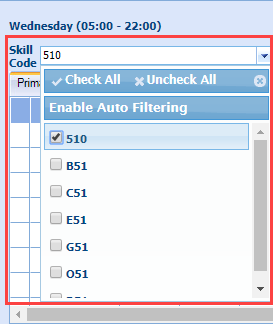
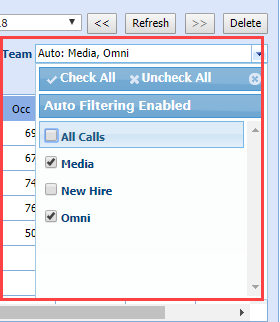
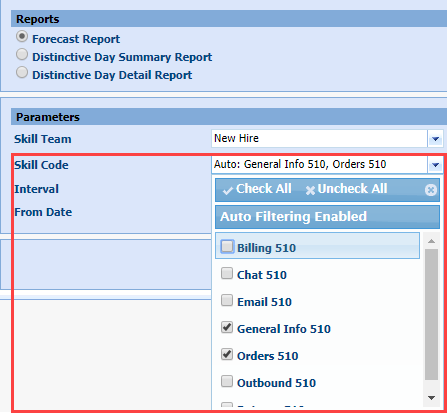
When Skill Codes or Teams are selected, the Auto function not only selects all relevant skill codes, but teams connected to those skill codes as well. This saves time in large contact centers when View Forecast, Forecast Reports, and Intra-Day.
Forecast > View Forecast
Forecast > Reports

Manage > Intra-day
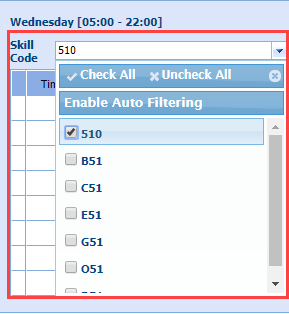
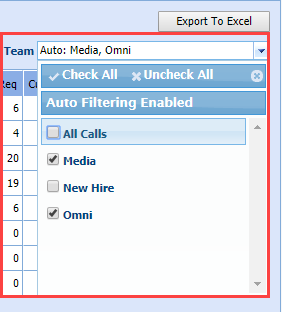
The same goes in reverse: when a user selects a Team(s), all Skill Codes that belong to that Team are auto-selected as well.
- Auto: is the new default setting.
- When the Auto setting is enabled, the word "Auto:" (with the colon) is presented before the normal list of skill codes or teams that would be displayed with the filter applied so the user is aware that the selection was made with the auto setting.
- When active, the drop-down reads: Auto Filtering Enabled.
- When inactive the drop-down reads: Enable Auto Filtering.
- The Auto option is remembered with other settings by the Persistent Sticky Filters feature.
- Auto works with multiple selections.
The setting the user picks on a drop-down applies directly to that drop-down; but the effect of the auto setting is seen when selecting an option on the opposite drop-down. When the Team setting for Auto is enabled, any Team that includes a Skill Code that is filtered on the Skill Code drop-down will be automatically selected (and vice versa).
Four options are available: Check All, Uncheck All, Auto Filtering Enabled/Disabled, and Manually checking/unchecking boxes.
- Check All selects all Skill Codes.
- Uncheck All de-selected all Skill Codes.
- Auto Filtering Enabled automatically selects the relevant Skills Codes. When a user selects a skill(s) on the forecast screen, all of the Skill teams that Skill belongs to are automatically selected (Default Setting).
- Manually check boxes or uncheck boxes.
Persistent Sticky Filters
When a user applies filter selections in Forecast > View Forecast, Forecast > Reports, and Manage > Intra-day, the filter selections are remembered. This feature works exactly like the filters on the Graphical view work, but you do not need to click an Apply button. The last user-selected filters will stick and persist across sessions and browsers. Closing the filter menu automatically applies the filter set.
The selected filters will remain from the last setting when:
- Leaving a section within Monet and coming back
- Logging out and logging back in
- Using a different browser
Enable/Disable Submit Anyway Button
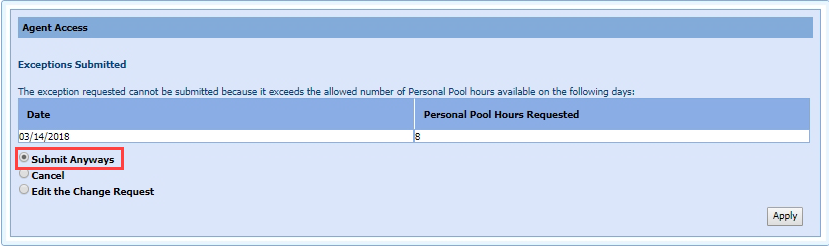
If an agent does not have sufficient hours in Personal Hours or Time Off Hours to cover a change request, the Submit Anywaysbutton can be disabled in their Agent Portal view through the Anywhere Options settings.

When the agent goes into their Portal to do a Schedule Change Requests, the option Submit Anyways will either be hidden or visible.
- Hidden
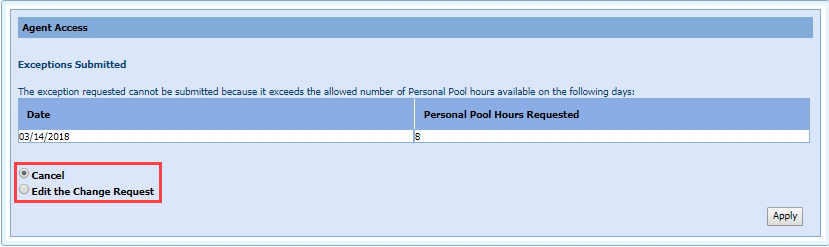
- Visible