Shift Swapping Guide
Agents now have the option to swap shifts through the Agent Portal. The administrator can turn these controls on or off, along with more specific controls allowing agents planned swaps; and the Monet Swap Board, an interface that allows agents to search for a shift to swap with.
Overview
Agents may now swap shifts inside of Agent Portal as long as they do not have exceptions on their schedule for that day and the person they trade with handles the same work as they do meaning they will need to belong to the same skill team and handle the same non-call. Exceptions cannot be present on a day if shift swapping is to be used.
Administrator Setup
To setup Shift Swapping:
- Log into the Agent Portal as an Administrator.
- Select Shift Swapping from the left-navigation menu.
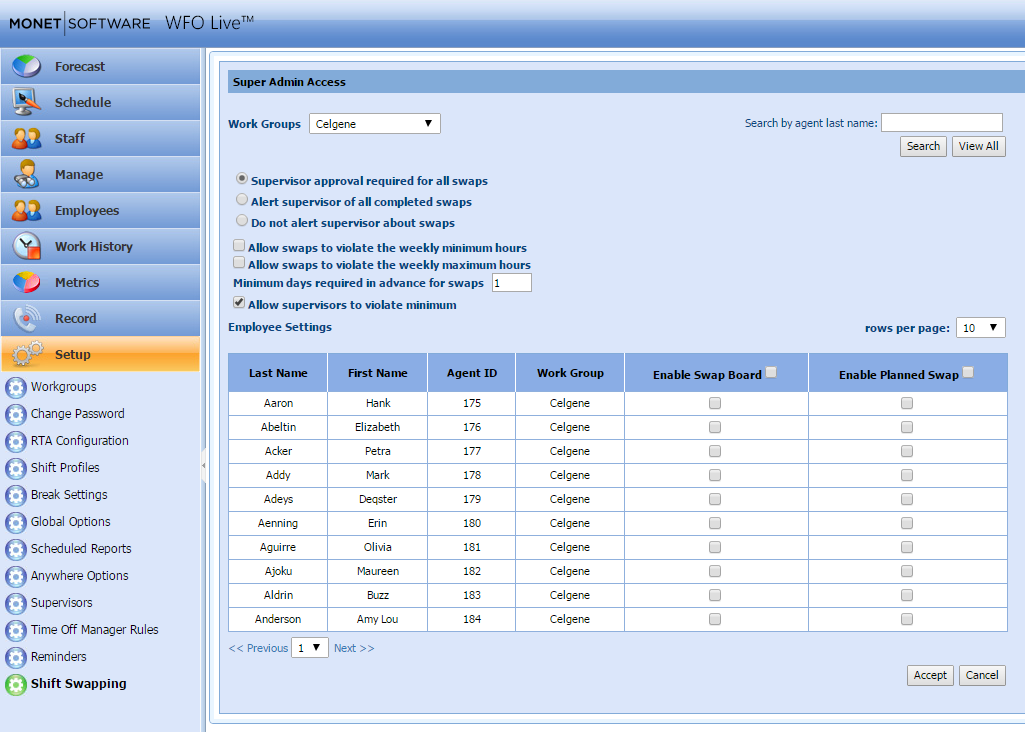
- Select the Workgroup to apply the selections to from the drop-down menu (1).
- Select the radio buttons (2, 3, 4) as desired.
- Radio button (2) - This setting will not allow any swaps to take place without supervisor approval.
- Radio button (3) - This option processes swaps without supervisor approval but sends a notification to the supervisor once it is complete.
- Radio button (4) - This option processes swaps supervisor approval or notifying the supervisor.
- Select check boxes as desired (5, 6).
- Check box (5) - Swaps could allow an agent to work less than their normal weekly hours.
- Check box (6) - Swaps could allow an agent to work more than their normal weekly hours. (NOTE: This could result in overtime, so use caution with this setting. It is turned off by default.)
- Enter the minimum number of days in advance required for swaps (7).
- Select the check box (8) to allow supervisors to violate minimum hours requirements.
- Select the Enable Swap Board check box for each agent in the Employee Settings table (9) to allow an agent to use the swap board to look for swaps with other agents.
- Select the Enable Planned Swap check box to allow agents to find a shift swap on their own and submit it.
Submitting Swap Requests
The Agent Portal offers two ways for agents to submit requests for shift swapping. Agents can use the Shift Swap Board ,or the Planned Swap request to submit a request for approval according to the administrator settings. The two options exist in cases where some agents are available to swaps and others do not wish to be bothered by trade requests. Turning off swap board in Administration Settings for these agents wishing for privacy will prevent other agents from “spamming” them with trade requests. This of course comes with its downside of not being able to do these sorts of trades themselves.
Shift Swap Board
The Shift Swap Board is used by agents who do not already know who they will swap with or what day they will trade in order to get their swap done. The agent must start with the day they wish to trade away, and then set a range of dates they are willing to search for trades within. Monet will find the shifts that are allowed for trading.
Planned Swap Request
This option is used by agents who do already know who they wish to trade with. This would be used when two agents have already discussed the details of their swap and agreed to it. Agent A would put in the details of their shift, the name of the agent trading, and the date of the other agent’s shift.
Examples
The following are example situations that can come up in normal circumstances.
Example A (Swap Board)
An agent (James Madison) checks their schedule and determines that Thursday, July 12th needs to be swapped away.
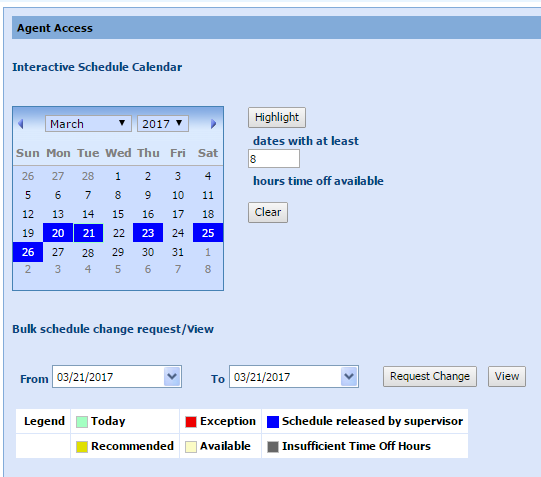
To submit a swap request:
- The agent James Madison goes to Schedule Swap Requests in the left-navigation menu.
- The agent fills out the swap board request to see if anyone can exchange that day for a day next week.
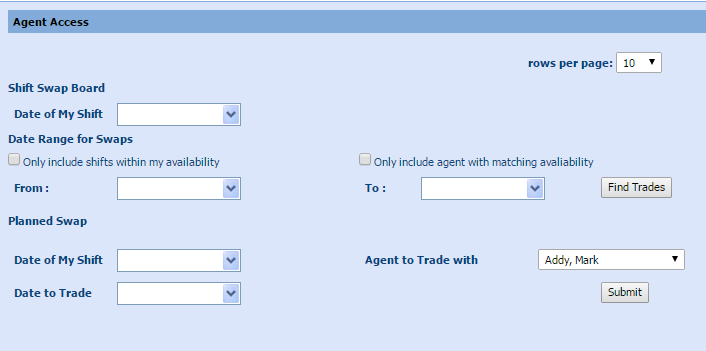
Monet finds eligible swaps (in this case Phillip Glass can trade the 20th for the 12th).
- The request is submitted to both the requested agent, and the supervisor.
- If both supervisor and agent approves, the swap is executed.
Example B (Planned Swap)
An agent (James Madison) checks their schedule and determines that Thursday, July 12th needs to be swapped away.
- James Madison speaks directly with Philip Glass and Phil agrees to swap his shift on the 20th with James' shift on the 12th.
- James Madison goes to Schedule Swap Requests in the left-navigation menu.
- James Madison fills in the Planned Swap details:
- Selects Date of My Shift from the calendar picker
- Selects the Date to Trade from the calendar picker
- Selects Philip Glass in the Agent to Trade with drop-down menu
- Selects Submit
- Enter a comment to Philip Glass.
- Philip Glass is given a pop-up alert from James asking for the swap.
- Philip selects his supervisor in the Supervisor Name drop-down menu (If different supervisor than the agent he is swapping with).
- Philip approves by selecting the Accept button, includes a note to James, and selects the Submit button.
- The supervisor receives the request pop-up.
- The supervisor selects the Pending shift swap link to review and selects Accept to accept the request.
- The supervisor adds a comment and selects Submit.
- The swap is accepted and is active immediately.
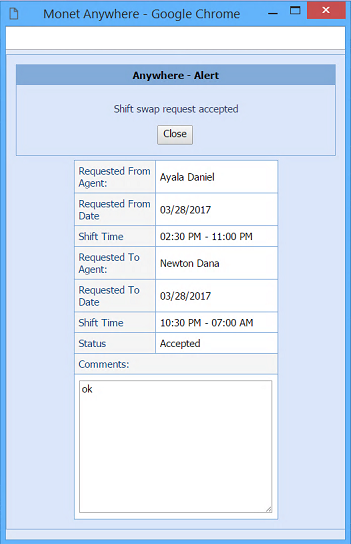
Shift Swap Failures
Shift swaps will fail if they do not meet ALL of the following criteria:
- Both roster dates must be published.
- Both agents must have the same skill team.
- Both agent must have shift swap enabled (See Administrator Setup).
- Both agents must have a vacancy on the swap date.
- Both agents must be assigned to a supervisor (Multiple supervisors is fine).
- Weekly Targets must be met, or the Allow swaps to violate the weekly minimum/maximum hours must be checked (See Administrator Setup). This is true even for agents swapping shifts of the same length, and even if the rules are already broken beforehand.
- Both agents must be exception free.
- If agent has non-call it must be swapped with an agent eligible to work the non-call.
- The swap cannot violate the Max Days in a Row setting.