Agent Assignment Troubleshooting Guide
The roster assignment in Monet WFO Live involves a few variables that can lead to unexpected results. Here are a few quick tips to fixing issues in your setup to end up with correct rosters.
The first step for verifying a new roster is the weekly individual report. This shows the targeted hours for each agent and what each agent was actually assigned. Figure 1 below shows an agent’s schedule for the week. You can see the agent was assigned within his weekly minimum and maximum hours at 28.5 hours.

With different settings in WFO Live the agent may not get assigned to anything:
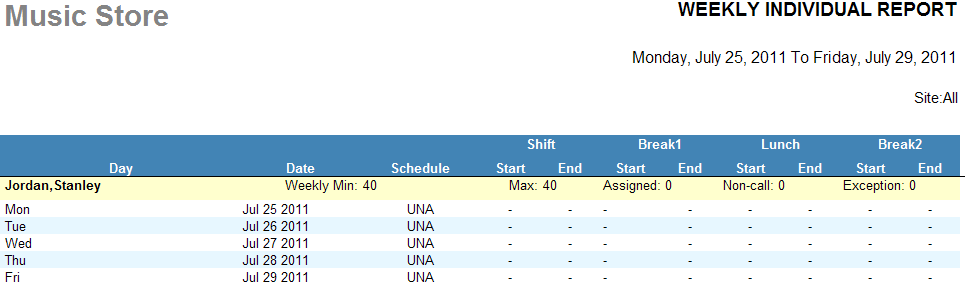
Figure 1
When learning to use WFO Live, it’s common when an agent doesn’t get assigned to the roster at all or they get assigned incorrectly. When you have an agent that didn’t get assigned when they should have, use the following check-list.
- Does the agent have a skill team? (Employees > Employee List)
- The agent must have a skill team selected. Additionally the start date for the skills must be prior to the roster week being generated. See Figure 3. The date of June 23, 2027 makes this employee ineligible for a roster until after that date.
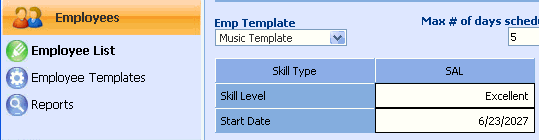
- The agent must have a skill team selected. Additionally the start date for the skills must be prior to the roster week being generated. See Figure 3. The date of June 23, 2027 makes this employee ineligible for a roster until after that date.
- Is the availability set correctly in the employee list?
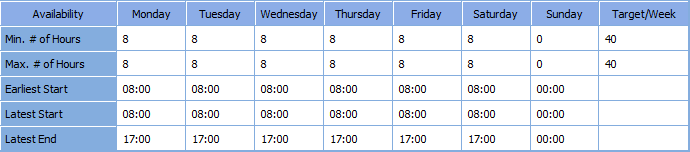
- The daily min and max hours must not conflict with the start and end times. For example, if the setting for Monday was a minimum of 9 hours, the earliest start was at 9AM and the latest end was 12PM. Since that is only a 3 hour shift, the 9-hour minimum cannot be met. Therefore, the agent is not assigned.
- The daily min and max only count the working time. Lunch time is not considered working time and should not be included in the Min. # of Hours or Max. # of Hours Setting.
- There must a be a shift in the shift profile that fits two criteria.
- The length shift is within the min/max.
- The shift times are within the earliest start and latest end.
- Lunch lengths must be correct in the shift profile and agent availability setup. Using Figure 4, the agent can qualify for three possible shifts: 8:00 to 16:00 with no lunch, 8:00-16:30 with a 30-minute lunch, and 8:00 to 17:00 with a 60-minute lunch.
- Check the shift profiles to make sure the shift you want assigned has been created. Sometimes new agents start work and they are given a slightly different shift that you haven’t used before. That will need to be added to the shift profiles.
- If the agent has a specific shift profile in the employee list selected for them, their availability has to match what’s in that shift profile.
- Have the Maximum Days scheduled in a row limit been met? This number may need to be changed.
- Does the forecast dictate the agent is required? If the agent isn’t guaranteed a minimum number of hours, then the forecasted requirement determines whether someone is scheduled or not. If the forecast is wrong, then the number of agents you staff could be wrong.
- Check for conflicts in the minimum hours between shifts setting. (Workgroups > Setup)
- Does the agent have a fixed shift or Shift profile in the Employees > Employee List?
- If so, make sure the specific shift profile or fixed shift is correct.